Skip to content
fasttechfix.com
fasttechfix.com
  • Home

fasttechfix.com

  • Home
Home / Uncategorized / How to Remove...
Uncategorized

How to Remove App Access to Google Drive Step By Step

fasttechfixteams@gmail.com March 30, 2026


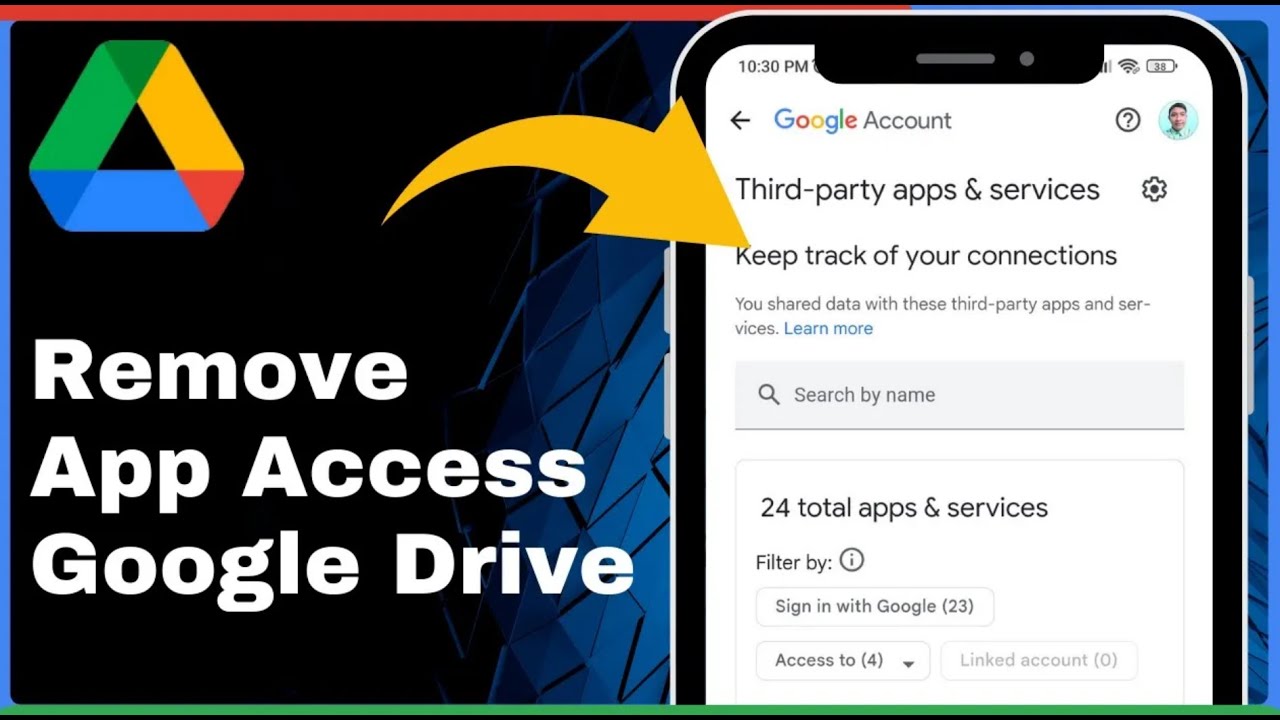
How to Remove App Access to Google Drive Step By Step => Watch On YouTube

Protect Your Data: How to Revoke App Access to Your Google Drive

Hey everyone! Ever wondered which third-party apps have access to your Google Drive? Over time, it’s easy for various applications and services to gain permissions, and regularly reviewing these connections is a crucial step for maintaining your digital privacy and security.

Whether you’ve just updated your Google Drive or are simply doing a routine security check, here’s a quick guide to help you remove unwanted app access, ensuring your files stay safe and sound.

Step-by-Step Guide to Removing App Access

Follow these simple steps to disconnect any app from your Google Drive:

  1. Open Google Drive: Start by launching the Google Drive app on your smartphone or tablet.
  2. Access Your Profile: Tap on your profile icon. You’ll typically find this in the top-right corner of your screen.
  3. Manage Your Google Account: From the menu that appears, select "Manage your Google Account." This will take you to your general Google Account settings.
  4. Navigate to Security: Once your Google Account settings load, you’ll see various options like "Personal info" or "Data & privacy." Tap on "Security."
  5. Find Third-Party Connections: Scroll down the Security page until you locate a section titled "Your connections to third-party apps and services." This is where all your linked apps are listed.
  6. See All Connections: Within this section, tap on "See all connections." This will display a comprehensive list of every app and service that currently has access to your Google Drive.
  7. Select the App to Remove: Browse through the list and identify the specific app you wish to disconnect. For example, if you wanted to revoke access for "Cheeky Play PC Games," you’d tap on that entry.
  8. Delete All Connections: After selecting the app, you’ll see an option to "Delete all connections you have with [App Name]." Tap this option.
  9. Confirm Your Action: A confirmation prompt will appear, asking you to confirm your decision. Tap the "Confirm" button to finalize the removal of access.

Take Control of Your Data

And just like that, the app’s access to your Google Drive is revoked! You can repeat these steps for any other applications you no longer want connected to your Google Drive, giving you full control over who sees and accesses your files. Regularly checking and managing these permissions is a great habit for enhancing your overall online security.

If you found this guide helpful, please consider sharing it with others who might benefit. Don’t forget to stay tuned for more quick tech tips and tutorials!

Facebook X.com LinkedIn Instagram Pinterest More

Share this content

Social Media

Facebook X.com Reddit Tumblr Snapchat VKontakte Odnoklassniki Weibo QQ Douban Baidu Digg StumbleUpon Flipboard Mix

Professional

LinkedIn Slack Zoom XING Behance Dribbble

Messaging

WhatsApp Telegram Microsoft Teams Messenger Viber Line WeChat SMS Kik Threema Signal

Visual

Pinterest Instagram

Communication

Email

Bookmarking

Pocket Evernote Instapaper

Developer

GitHub GitLab Stack Overflow Dev.to Hacker News

Gaming

Discord Twitch

Video

YouTube TikTok

Publishing

Medium WordPress Blogger

Entertainment

Spotify SoundCloud

Academic

Mendeley ResearchGate Academia

Finance

Coinbase

Shopping

Amazon eBay Etsy

Lifestyle

Foursquare Yelp

Utility

Copy Link Print QR Code
#Disconnect App from Google Drive
#Google Account Security
#Google Drive App Settings
#Google Drive Permissions
#Google Drive Privacy Settings
#How to Control App Access Google Drive
#How to Remove App Access to Google Drive
#Manage App Access Google Drive
#Manage Google Drive Apps
#Remove App Access from Google Account
#Remove Third-Party App Permissions Google Drive
#Remove Unwanted App Access
#Revoke App Access Google Drive
#Secure Google Drive Apps

Post navigation

Previous: How to Clear Search History on Facebook Easy! 2025
Next: The Best Android Apps Right now! (June 2023)

Recent Posts

  • How to Buy PEPE Coin on Binance 2024 | Buy or Sell PEPE Coin in Binance
  • How To Use Coins On Aliexpress (Step By Step Tutorial)
  • How To Delete Discord Account 2025
  • The Ultimate Guide: How to Create DISCORD Account on MOBILE in 2024
  • How to Connect TikTok to Facebook 2025

Recent Comments

No comments to show.

Archives

  • April 2026
  • March 2026

Categories

  • Uncategorized
© 2026 fasttechfix.com. All Rights Reserved. | Blog Build by Wp Theme Space.
Facebook X.com LinkedIn Instagram Pinterest

Share this content

Social Media

Facebook X.com Reddit Tumblr Snapchat VKontakte Odnoklassniki Weibo QQ Douban Baidu Digg StumbleUpon Flipboard Mix

Professional

LinkedIn Slack Zoom XING Behance Dribbble

Messaging

WhatsApp Telegram Microsoft Teams Messenger Viber Line WeChat SMS Kik Threema Signal

Visual

Pinterest Instagram

Communication

Email

Bookmarking

Pocket Evernote Instapaper

Developer

GitHub GitLab Stack Overflow Dev.to Hacker News

Gaming

Discord Twitch

Video

YouTube TikTok

Publishing

Medium WordPress Blogger

Entertainment

Spotify SoundCloud

Academic

Mendeley ResearchGate Academia

Finance

Coinbase

Shopping

Amazon eBay Etsy

Lifestyle

Foursquare Yelp

Utility

Copy Link Print QR Code