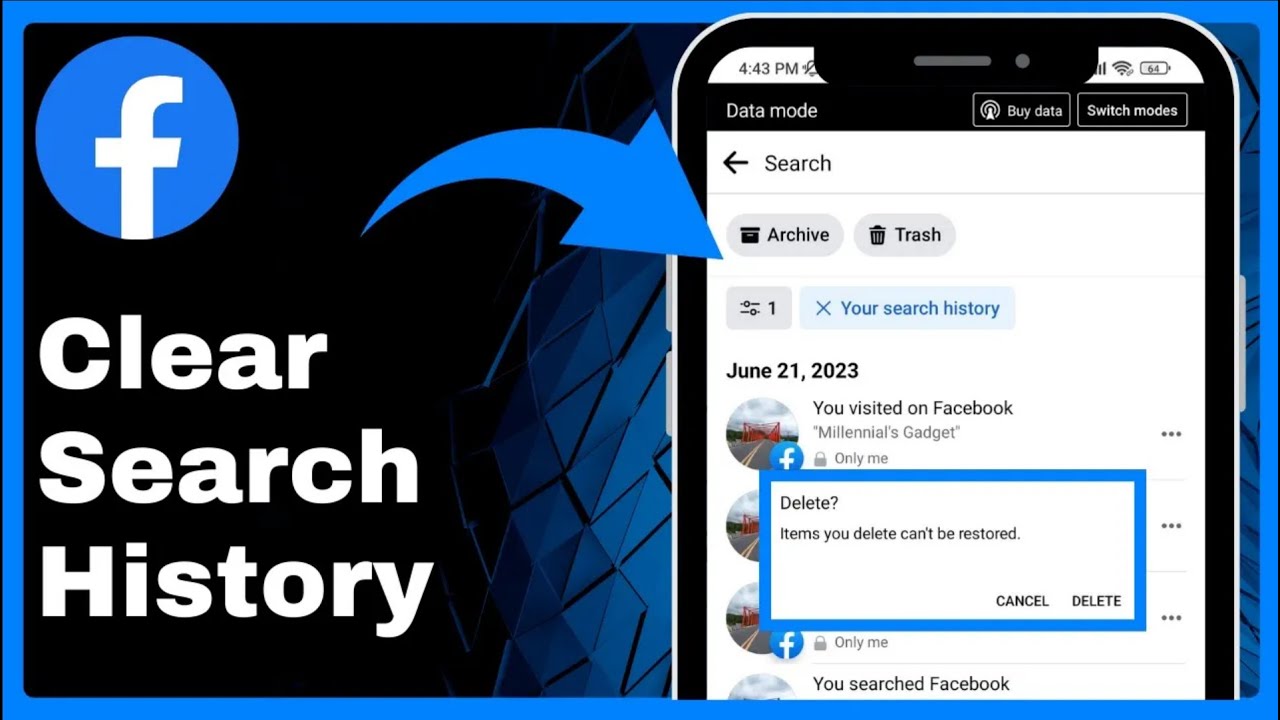
How to Clear Search History on Facebook Easy! 2025 => Watch On YouTube
Clear Your Facebook Search History: A Quick Guide
Hey everyone! Ever wondered how to wipe your search history clean on Facebook? Whether you’re tidying up your digital footprint or just want a fresh start, clearing your search history on Facebook is super easy. In this quick guide, we’ll walk you through exactly how to do it, step-by-step.
Here’s what you need to do:
- Open the Facebook App: First things first, grab your phone and open up the Facebook app.
- Access the Main Menu: Tap on the three horizontal lines (the menu icon) or your profile picture, typically located in the top right corner of your screen.
- Go to Settings: Look for the gear icon, which represents ‘Settings,’ usually in the top right of the menu screen, and tap it.
- Find Your Activity: On the ‘Settings & Privacy’ screen, scroll down a bit until you find the section titled ‘Your Activity.’ Within that, tap on ‘Activity Log.’
- Navigate to Logged Information: Once you’re in the ‘Activity Log,’ scroll all the way down to the bottom and tap on ‘Logged Information.’
- Manage Your Searches: Here’s where you’ll find what you’re looking for. You might see a dropdown menu or directly see an option to ‘Manage Search.’ Tap on ‘Manage Search’ to view your complete search history.
- Viewing Your Search History: You’ll now see a comprehensive list of all the pages you’ve visited, profiles you’ve looked up, and terms you’ve searched for on Facebook. If you need to filter this view, look for ‘Filters,’ then ‘Categories,’ and select ‘Your Search History.’
Deleting Searches:
- Delete Individual Searches: To remove specific items from your history, tap the three dots located on the right side of the search entry you want to delete. Then, simply tap ‘Delete’ and confirm your action when prompted.
- Clear All Searches: If you want to wipe everything clean in one go, it’s even easier! Just tap the ‘Clear Searches’ button, usually located at the top or bottom of your search history list. Confirm your choice, and all your Facebook search history will be gone!
And there you have it! Clearing your Facebook search history is a straightforward process once you know where to look. We hope this guide was super helpful for you. If it was, please give this article a thumbs up and consider subscribing to our channel for more helpful tech tips. Don’t forget to hit that bell icon so you’re always in the loop for our next video!