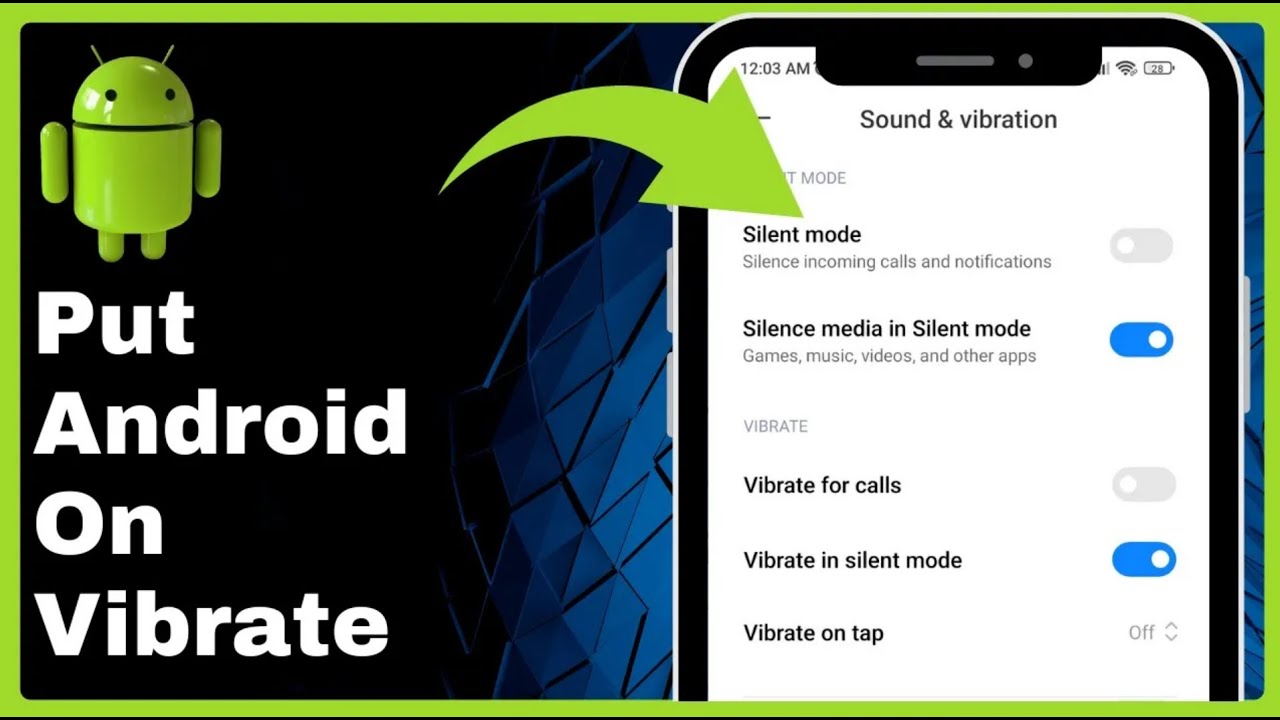
How To Put Android On Vibrate 2025 => Watch On YouTube
How to Put Your Android Phone on Vibrate Mode
Welcome back, everyone! Today, we’re tackling a common need for Android users: putting your phone on vibrate. Whether you’re in a meeting, a quiet place, or just prefer a subtle alert, knowing how to quickly switch to vibrate is super handy. While specific options might vary slightly depending on your Android phone’s brand and version, we’re going to cover three reliable methods that work across most devices.
Let’s dive in!
Method 1: The Notification Panel Quick Toggle
This is often the fastest way to get your phone to vibrate.
- Swipe Down: Start by swiping down from the top of your screen. This will reveal your notification panel and quick settings tiles.
- Locate the Sound Icon: Look for an icon that represents your phone’s current sound mode. This is often a bell icon (for sound), a bell with a line through it (for silent), or a phone with vibration lines next to it (for vibrate).
- Tap to Cycle: If your phone is currently on sound mode, simply tap the bell icon. Many Android phones allow you to cycle through sound, vibrate, and silent modes by repeatedly tapping this icon. Keep tapping until you see the vibrate icon appear, and your phone will automatically switch.
Method 2: Using Your Volume Buttons
Your physical volume buttons aren’t just for adjusting volume; they can also be a gateway to your sound settings.
- Press a Volume Button: Press either the Volume Up or Volume Down button on the side of your phone.
- Access Sound Options: This action will usually bring up a volume slider on your screen. Next to this slider, you’ll often see an icon representing your current sound mode (like a bell).
- Tap to Vibrate: Tap this bell icon. Similar to the notification panel, you can often tap this icon to cycle through the different sound profiles: sound, vibrate, and silent. Tap until your phone is in vibrate mode.
Method 3: Diving into Your Settings Menu
For more control and customization, the main Settings menu is your go-to.
- Open Settings: Find and tap the "Settings" app icon on your home screen or in your app drawer.
- Navigate to Sounds & Vibration: Scroll down and look for an option called "Sound & vibration" or something similar. Tap on it.
- Customize Vibrate Options: Within this menu, you’ll find a range of options related to vibration. Look for settings like:
- Vibrate for calls: Toggle this on if you want your phone to vibrate when you receive an incoming call.
- Vibrate in silent mode: Ensure this is enabled if you want a vibrate alert even when your phone is otherwise silent.
- Vibrate on tap/touch: This controls haptic feedback when you interact with the screen.
Every Android phone will have variations of these settings, allowing you to manually set up and fine-tune your vibrate preferences.
There you have it! With these three methods, you should be able to easily put your Android phone on vibrate, no matter what brand you’re using.
If you found this guide helpful, please consider giving us a like and subscribing to our channel for more helpful tech tips. Don’t forget to hit that notification bell so you don’t miss out on our next video!