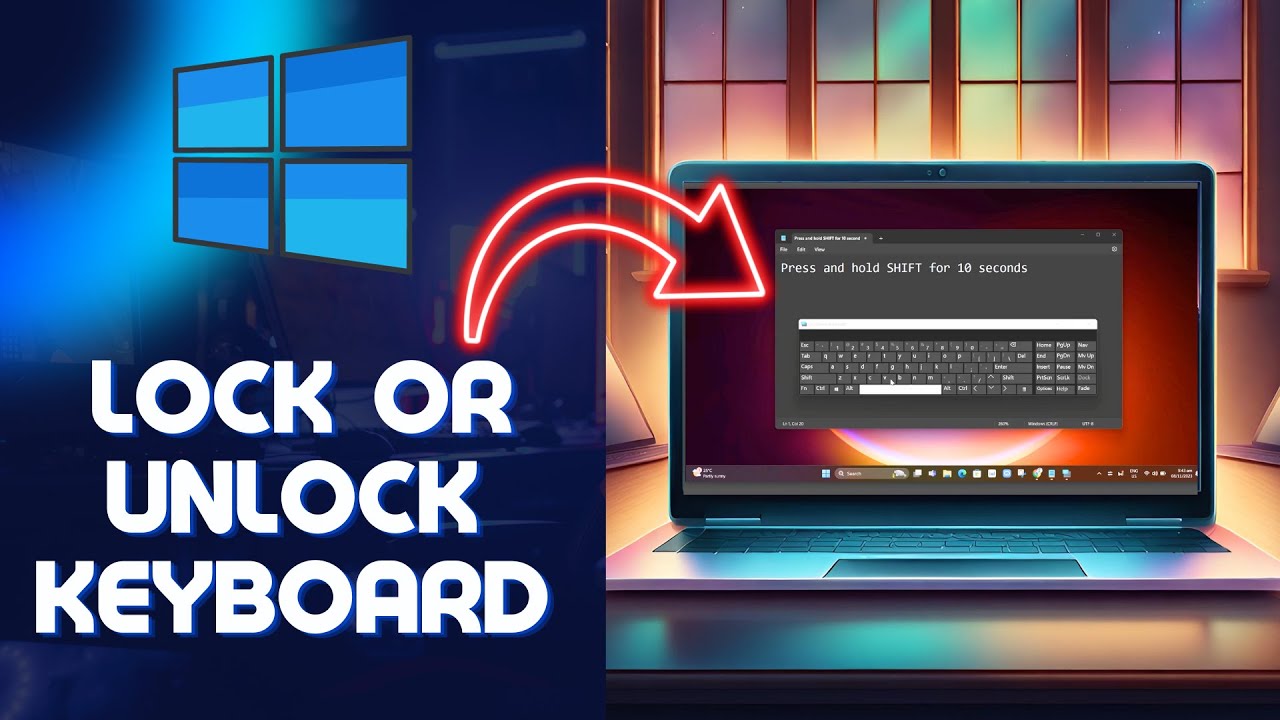
How to Lock/Unlock Keyboard in Windows 10&11 (Easy) => Watch On YouTube
Quick Tech Tip: Lock and Unlock Your Keyboard on Windows in Seconds!
Ever found yourself needing to temporarily disable your keyboard on your Windows PC? Maybe you’re giving it a quick clean, have a curious pet who loves to "help" you type, or little ones who enjoy mashing keys. Whatever the reason, knowing how to quickly lock and unlock your keyboard can be a real game-changer. Good news! There’s a super simple trick you can use with just your physical keyboard. Let’s dive in!
How to Lock Your Keyboard
Here’s the lowdown: to lock your keyboard, all you need to do is press and hold the Shift key on your physical keyboard for more than 10 seconds. Seriously, just hold it down.
After about 10 seconds, a message will pop up on your screen. It will typically ask, "Do you want to turn on Filter Keys?" and might mention disabling this keyboard shortcut in ease of access settings. Go ahead and click "Yes" on that prompt.
Voila! Try typing now – your keyboard should be locked and unresponsive. This is a handy feature to prevent accidental inputs when you step away or need to clean your keys.
How to Unlock Your Keyboard
Ready to get back to typing? Unlocking your keyboard is just as easy.
Simply repeat the process: press and hold that same Shift key again for about 10 seconds. You won’t see another prompt this time, but after those 10 seconds are up, your keyboard will automatically unlock.
Give it a test – you should be able to type normally once more!
That’s All There Is To It!
And there you have it! A quick, hassle-free way to lock and unlock your keyboard on your Windows computer, no extra software needed. If this trick saved you some headache, we’d love it if you’d share this handy tip with others! Stay tuned for more simple tech fixes.