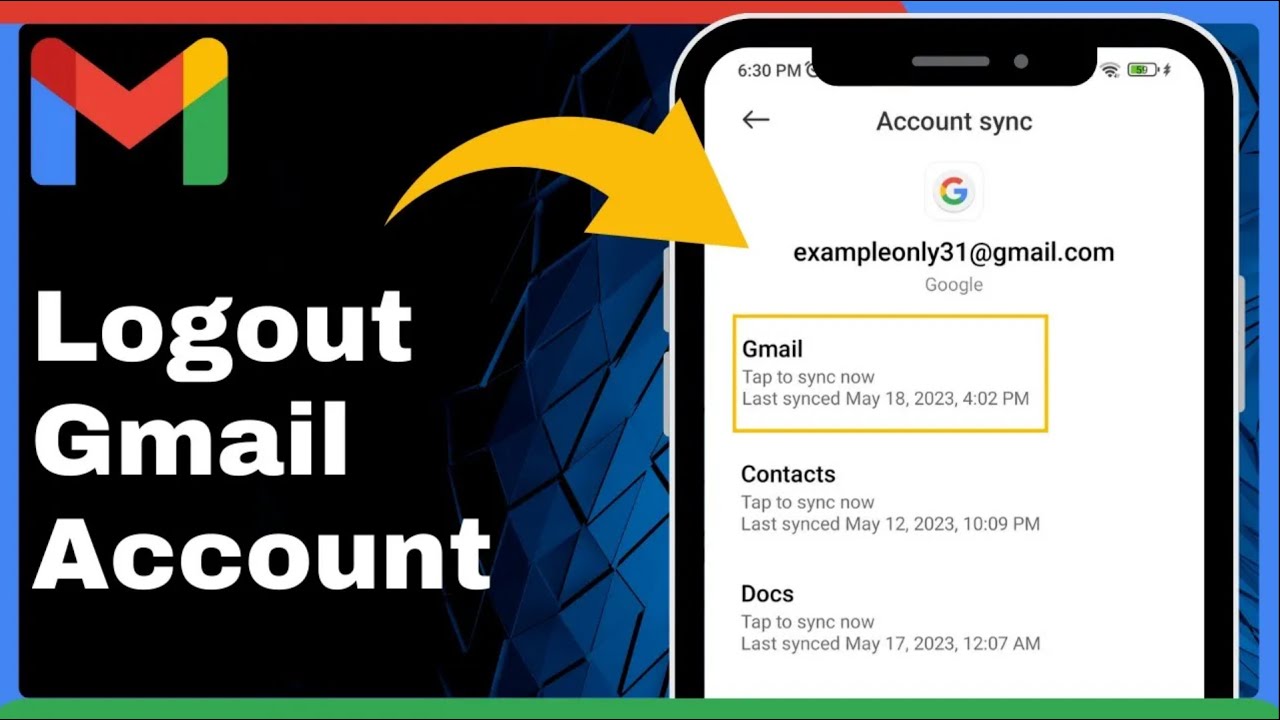
How To Logout Gmail From Phone Easy => Watch On YouTube
Here’s a quick and easy guide to logging out or signing out of your Gmail account on your phone. Sometimes that "log out" button isn’t obvious, but we’ll walk you through it step-by-step.
How to Log Out of Gmail on Your Phone
- Open Your Gmail App: First things first, open up the Gmail app on your phone. Make sure you’re already logged into the specific account you wish to sign out of.
- Tap Your Profile Icon: Look for your profile picture icon (or initial) in the top right corner of the screen and give it a tap.
- Manage Accounts on This Device: From the menu that pops up, scroll down and select "Manage accounts on this device." This option is usually towards the bottom.
- Select Google: You’ll now see a screen showing various account types and sync settings. Scroll down a bit and tap on "Google."
- Choose the Account to Remove: Here, you’ll see a list of all the Google accounts currently connected to your phone. Tap the specific Gmail account you want to remove.
- Find the "More" Option: On the next screen, scroll all the way down to the bottom. You should see a "More" option (sometimes represented by three vertical dots). Tap it.
- Remove Account: Finally, tap "Remove account."
Important Warning!
A message will pop up, letting you know that "Removing the account will delete all of its messages, contacts, and other data from the phone, including your Gmail."
Don’t worry! This doesn’t permanently delete your Google or Gmail account. It simply removes it from this specific phone. Your account and all your data will still be safe and accessible from a computer or another device.
If you understand and are ready to proceed, tap "Remove account" again to confirm.
And just like that, you’ve successfully logged out of your Gmail account on your phone! Quick, easy, and done!