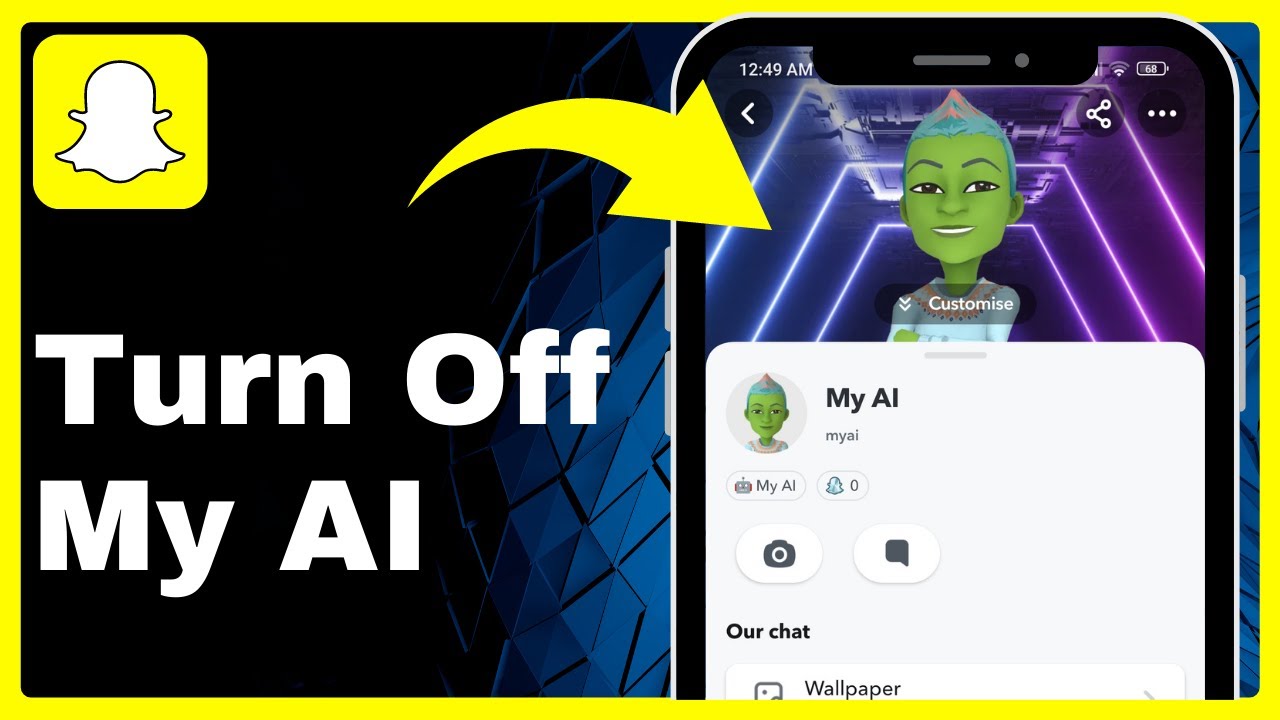
😲 How To Turn Off My AI On Snapchat! => Watch On YouTube
How to Manage or Request Removal of My AI on Snapchat
My AI, Snapchat’s built-in chatbot, has been a hot topic since its introduction. While some users find it helpful, many are looking for a way to turn it off or remove it from their chat feed. Unfortunately, Snapchat doesn’t offer a simple "off" switch just yet. However, there are a few ways you can manage its presence and, more importantly, make your voice heard to the Snapchat team.
Let’s break down the current options:
Understanding My AI Management on Snapchat
Snapchat’s official support indicates methods for "unpinning or removing" My AI from your chat feed, but not explicitly "turning it off" in the sense of deleting it entirely from your account. The solutions available currently are more about hiding or moving it out of the way.
Method 1: Unpinning or Hiding My AI from Your Chat Feed (Temporary Fixes)
These steps will help you move My AI from the top of your chat list, but won’t remove it completely from Snapchat.
Step 1: Unpinning from Chat Settings
- Open your Snapchat app and navigate to your Chats screen.
- Tap and hold on the "My AI" chat.
- From the pop-up menu, tap on "Chat Settings."
- At this point, you might see an option to "Hide My AI." If available, selecting this will hide My AI from your main chat feed. However, it typically doesn’t offer a permanent "turn off" option here.
Step 2: Managing My AI with Snapchat+ (Unpinning)
If you’re a Snapchat+ subscriber, you have an additional option to unpin My AI.
- Go to your profile by tapping your Bitmoji or profile icon at the top left of the screen.
- Tap on the Snapchat+ banner.
- Look for an option related to "My AI Pinned to Your Chats" or similar.
- Toggle this option off. This will unpin My AI from the top of your chat list, moving it down with your other conversations.
Important Note: Even after unpinning or hiding, My AI generally remains accessible and isn’t fully removed from your Snapchat experience.
Method 2: Requesting Full Removal of My AI (The Current Best Approach for a Permanent Solution)
Since a direct "off" switch isn’t available, the most effective way to advocate for one is to provide feedback directly to Snapchat. This sends a clear message to their development team.
Step 1: Access the Suggestion Feature
- Open Snapchat and go to your Settings. You can do this by tapping your profile icon (Bitmoji) at the top left, then tapping the gear icon at the top right.
- Scroll down the Settings menu until you find "I Have a Suggestion." Tap on it.
Step 2: Craft Your Suggestion
- In the provided text box, clearly articulate your desire for a feature to remove or permanently turn off My AI.
- Example suggestion: "Please provide an option to permanently remove or turn off My AI from my Snapchat account. I’d like more control over which features appear in my app."
- At the bottom, tap on "Choose Topic."
- Select "Using Snapchat features" as the most relevant category for your feedback.
Step 3: Send Your Suggestion and Wait
- Once you’ve typed your suggestion and selected the topic, tap "Send."
- The Snapchat team will review suggestions, and while there’s no immediate guarantee, the more users who request a specific feature, the higher the likelihood of it being implemented in a future update. It might take a few days or even weeks for any changes to be reflected.
Conclusion
While fully turning off or removing My AI isn’t as straightforward as many users would like, you do have options to manage its visibility and, crucially, to communicate your preferences to Snapchat. By utilizing the "I Have a Suggestion" feature, you’re directly contributing to the evolution of the app and helping to shape its future features.
If you found this guide helpful, stay tuned for more tech tips and Snapchat updates!