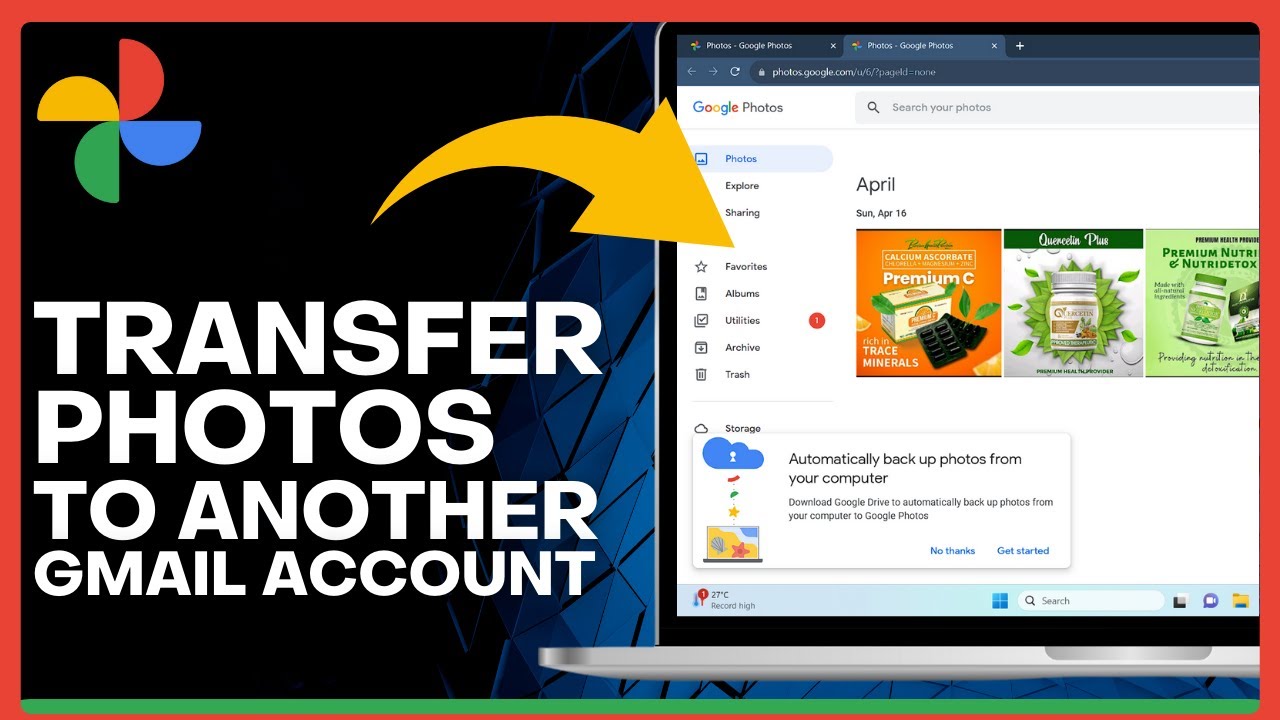
Transfer Photos From Google Photos to Another Gmail Account 2025 => Watch On YouTube
How to Easily Transfer Google Photos to Another Gmail Account
Hey everyone! Ever found yourself needing to move a bunch of cherished memories from one Google Photos account to another? Maybe you’re consolidating old accounts, or just organizing your digital life. Good news – it’s actually a pretty straightforward process, and we’re here to walk you through it step-by-step.
Here’s how you can seamlessly transfer photos from your current Google Photos account to a brand new one using a simple share link method.
What You’ll Need:
- Access to both your source Gmail account (where the photos currently are)
- Access to your destination Gmail account (where you want the photos to go)
- A web browser (Google Chrome works great!)
Step-by-Step Guide to Transferring Your Photos:
Step 1: Open Google Photos and Select Your Pictures
First things first, open up your web browser and head over to photos.google.com. Make sure you’re signed in to the Google account that currently holds the photos you want to move.
Once you’re in, take a moment to select all the photos you wish to transfer. You can click on individual photos, or select a range by clicking the first, then holding Shift and clicking the last.
Step 2: Create a Shareable Link
With your desired photos selected, look for the "Share" icon in the top right corner of your screen (it usually looks like an arrow pointing to the right or a sideways "V"). Click on it.
From the sharing options that appear, choose "Create link." Google Photos will then generate a unique link for these selected photos. Once the link is created, you’ll see an option to "Copy link." Go ahead and click that to copy it to your clipboard.
Step 3: Open the Link in a New Tab
Now, open a brand new tab in your web browser. You can usually do this by clicking the plus icon next to your current tab.
Once the new tab is open, paste the link you just copied into the address bar and hit Enter. This will open up a page displaying all the photos you selected in the previous step.
Step 4: Switch to Your Destination Google Account
This is a crucial step! On the page where your shared photos are displayed, you need to make sure you’re signed into your destination Google account (the one you want the photos to be transferred to).
Look for your profile picture or initial icon in the top right corner of the browser window. Click on it, and if you’re not already signed into the correct destination account, select it from the list or add it if necessary. You might need to sign out of the source account temporarily on this tab.
Step 5: Save the Photos to Your New Account
Once you’re logged into the destination account on that shared link page, you’ll see a "Save to Photos" icon in the top right corner (it often looks like a cloud with a downward-pointing arrow, or a simple save icon).
Click this icon! This action will save all the photos displayed on that page directly into your newly selected Google Photos account.
Step 6: Verify the Transfer
To confirm that everything worked perfectly, close the shared link tab and head back to photos.google.com. Make sure you are signed into your destination Google account.
You should now see all your recently transferred photos happily residing in your new account!
That’s all there is to it! This method provides a quick and effective way to move your precious memories between different Google Photos accounts without a hitch. We hope this guide makes managing your digital photo library a breeze!