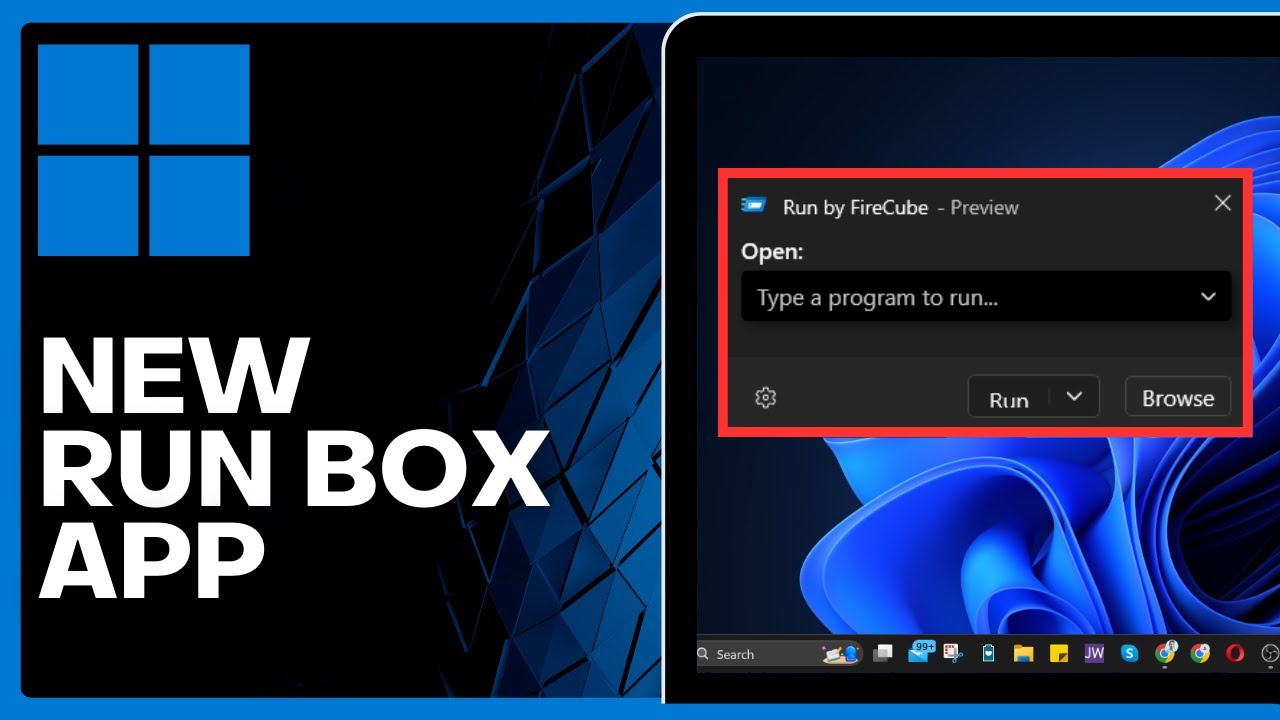
How to Install Windows 11 New Run Box App => Watch On YouTube
Ditch the Default: Unleash the Power of FireCube’s New Run Box App for Windows 11!
Hey folks! Ever felt like your trusty old Windows 11 Run box could use a serious upgrade? Well, you’re in luck! Today, we’re diving into how to install a fantastic new alternative: the Run box app by FireCube. It’s packed with features that’ll make your everyday Windows experience smoother and more powerful.
Why Upgrade Your Run Box?
Forget the basic, white-on-black default. This new app brings a sleek dark mode, incredible AI processing capabilities, and tons of personalization options to the table. It’s genuinely a better, more modern take on a classic Windows utility that just might surprise you with its intelligence.
Getting Your Hands On It
Getting your hands on this awesome app is super straightforward:
- Head to the Microsoft Store. You know the drill!
- Once there, go to the search bar at the very top.
- Type in "Run by FireCube" and hit enter.
- You’ll see "Run by FireCube" pop up. Just a heads-up, this isn’t from Microsoft directly, but from FireCube Studios. It’s legit!
- Click the "Get" button and let it install.
- Once it’s done, hit "Open" to launch your new Run box!
First Look & Setup
When you first open it, you’ll go through a quick setup. Just click the arrow on the right side of your screen to navigate. You’ll spot some cool settings and features right off the bat, like the option to "enable AI processing" – more on that in a sec! You’ll also immediately notice its sleek dark mode, which is a major win over the default.
Dive into the Features
Now, let’s really dig into what makes this app shine:
- Essential Keyboard Shortcut: First things first, head to the settings (the gear icon). You’ll definitely want to toggle on the option to use the classic Win + R shortcut. This means your new FireCube Run box will pop up instead of the old one – super convenient!
- AI Powerhouse: Get this – the Run by FireCube app is powered by OpenAI, specifically with ChatGPT 3.5 capabilities! This means it’s not just a simple command runner; it’s got some serious smarts built right in.
- Make It Yours: Check out the bottom of the settings for some neat personalization options. You can customize the background, tweak your keyboard settings, choose to "show running apps," or even set it to "close after command."
- Got Questions or Ideas? The "Information" section lets you easily contact the developer, submit bugs, or track updates. That’s great support!
Putting It to Use
Using this new Run box is just as easy as the old one, but with added flair:
- Want to open your system configuration? Just type "msconfig" into the box, hit "Search or Run," and boom – it opens right up.
- Need to revisit a past command? Click the dropdown menu to view your entire search history. Super handy!
- And for those times you need extra permissions, just hit the arrow next to "Run" and select "Run as administrator." Easy peasy.
Final Thoughts
So there you have it! The Run by FireCube app is a fantastic upgrade for any Windows 11 user looking for a more modern, feature-rich, and intelligent Run box experience. With its dark mode, AI integration, and robust customization, it truly elevates a basic Windows utility into something much more powerful. Go ahead, give it a try – you won’t want to go back to the old one!