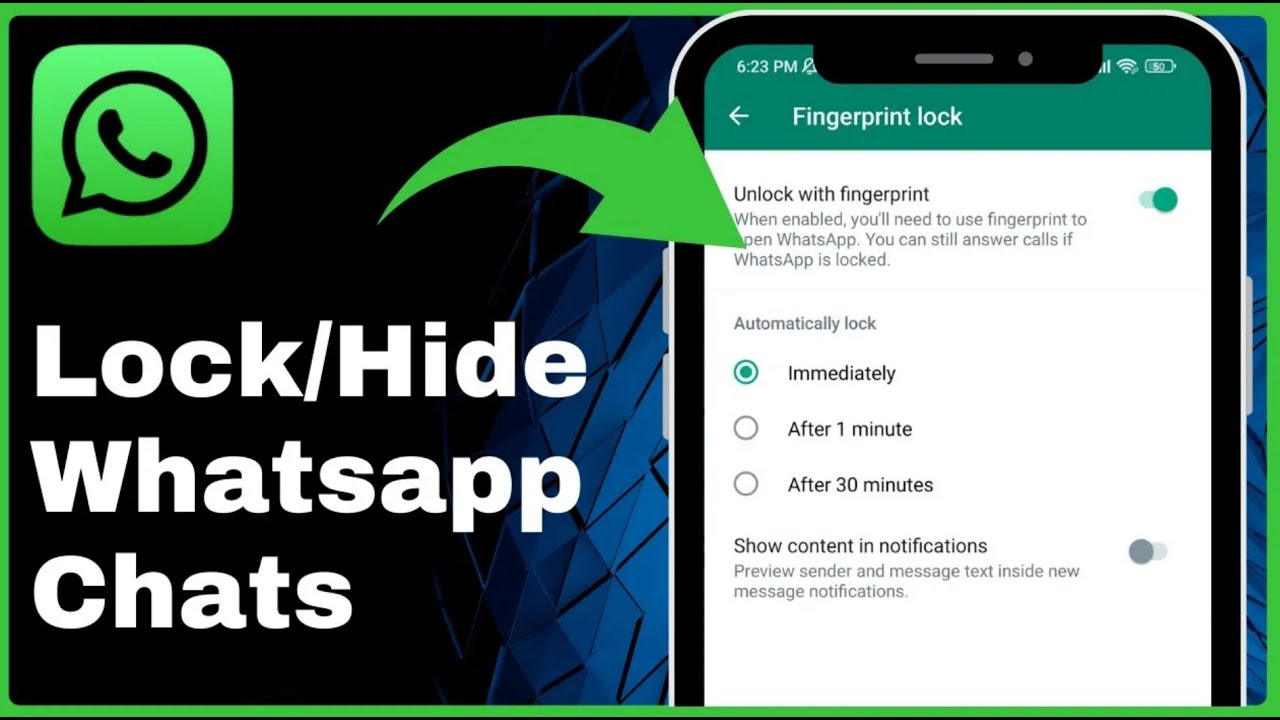
How to Lock and Hide WhatsApp Chats => Watch On YouTube
Keep Your WhatsApp Chats Private: How to Lock and Hide Your Messages
In today’s digital world, privacy is more important than ever. If you’re looking for ways to keep your WhatsApp conversations secure and out of sight, you’re in the right place! This guide will walk you through how to lock your entire WhatsApp application and hide sensitive content from your notifications, ensuring your chats stay private.
Let’s dive in!
How to Lock Your Entire WhatsApp App with a Fingerprint
The most robust way to protect your WhatsApp chats is by locking the entire application with a fingerprint. This means nobody can open your WhatsApp without your biometric authentication.
Here’s how to set it up:
- Open WhatsApp: Launch the WhatsApp application on your smartphone.
- Access Settings: Tap the three dots icon in the top right corner of your screen, then select Settings.
- Navigate to Privacy: In the Settings menu, tap on Privacy.
- Find Fingerprint Lock: Scroll down until you see the "Fingerprint lock" option.
- Enable Fingerprint Lock: Tap on "Fingerprint lock" and then toggle on the switch next to "Unlock with fingerprint."
- Confirm Your Fingerprint: You’ll be prompted to confirm your fingerprint. Place your finger on your phone’s fingerprint sensor.
- Set Automatic Lock Duration: Once enabled, you’ll have options for how quickly WhatsApp locks itself:
- Immediately: WhatsApp will lock the moment you leave the app.
- After 1 minute: WhatsApp will lock after one minute of inactivity.
- After 30 minutes: WhatsApp will lock after thirty minutes of inactivity.
For maximum security, select "Immediately."
Once you’ve done this, the next time you try to open WhatsApp, you’ll be prompted to use your fingerprint to unlock it. No more accidental peeks at your conversations!
Hide Chat Content from Notifications
Even with a fingerprint lock, message previews can sometimes appear in your phone’s notifications, potentially revealing sensitive information. Here’s how to prevent that:
- While in "Fingerprint lock" settings (from step 7 above), you’ll see an option below the lock duration settings: "Show content in notifications."
- Toggle this option OFF.
By turning this off, you’ll still receive notifications for new messages, but the sender’s name and the message content will be hidden until you unlock WhatsApp. This adds another layer of privacy to your communications.
How to Disable WhatsApp Fingerprint Lock
If you ever decide you no longer want the fingerprint lock feature enabled, it’s easy to turn off:
- Open WhatsApp: Unlock your WhatsApp using your fingerprint.
- Go to Settings: Tap the three dots in the top right, then select Settings.
- Navigate to Privacy: Tap on Privacy.
- Find Fingerprint Lock: Scroll down to "Fingerprint lock."
- Toggle Off: Tap on "Fingerprint lock" and then toggle OFF the switch next to "Unlock with fingerprint."
And that’s it! Your WhatsApp will no longer require a fingerprint to open.
Keeping your WhatsApp chats private is straightforward with these built-in security features. We hope this guide helps you secure your conversations and enjoy greater peace of mind!