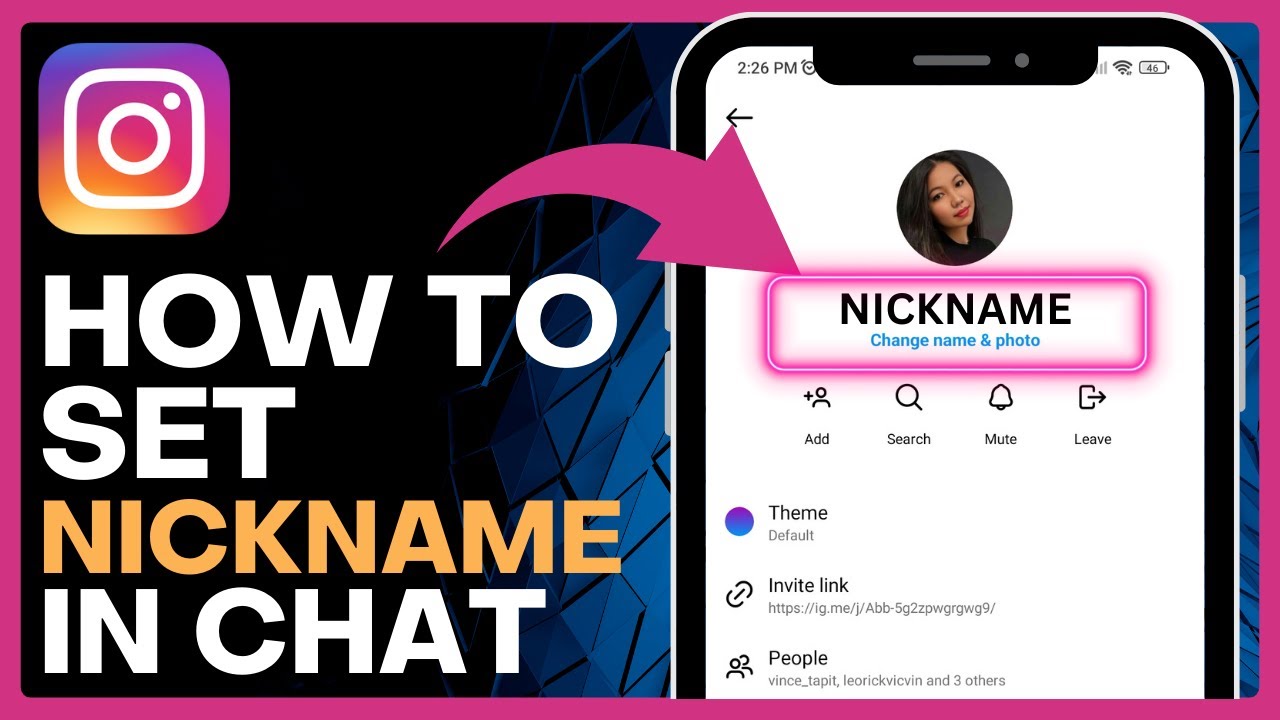
How To Set NICKNAME In Instagram Chat (Tutorial) => Watch On YouTube
How to Change Your Instagram Chat Name (or Nickname)
Want to add a personal touch to your Instagram conversations or make it easier to identify specific chats? Renaming your chats, whether they’re group conversations or even one-on-one messages, is a simple way to customize your experience. Here’s a quick guide on how to update your Instagram chat’s name.
Step-by-Step Guide:
- Open Your Instagram App: Start by launching the Instagram application on your mobile device.
- Access Your DMs: Tap on the Messenger icon, which looks like a paper airplane or speech bubble, located in the top-right corner of your screen. This will take you to your direct messages (DMs).
- Select the Chat: From your list of conversations, choose the specific chat you wish to rename.
- Tap on the Profile Name: Once inside the chat, tap on the profile name (or group name) displayed at the very top of the screen. This will open the chat details.
- Find "Change Name and Photo": On the chat details page, look for and tap the option labeled "Change Name and Photo."
- Choose "Change Name": A small menu will pop up. Select "Change Name" from the options provided.
- Enter Your New Name: A text field will appear, allowing you to type in the desired new name for your chat. For example, if it was "Group One," you could change it to "New Group Two" or "Family Hangout."
- Confirm Your Change: Once you’ve entered the new name, it should automatically update or you may see a "Done" or "Save" button to finalize the change.
And just like that, your Instagram chat will have its new name! This straightforward process helps you keep your conversations organized and adds a fun, customized element to your messaging experience.