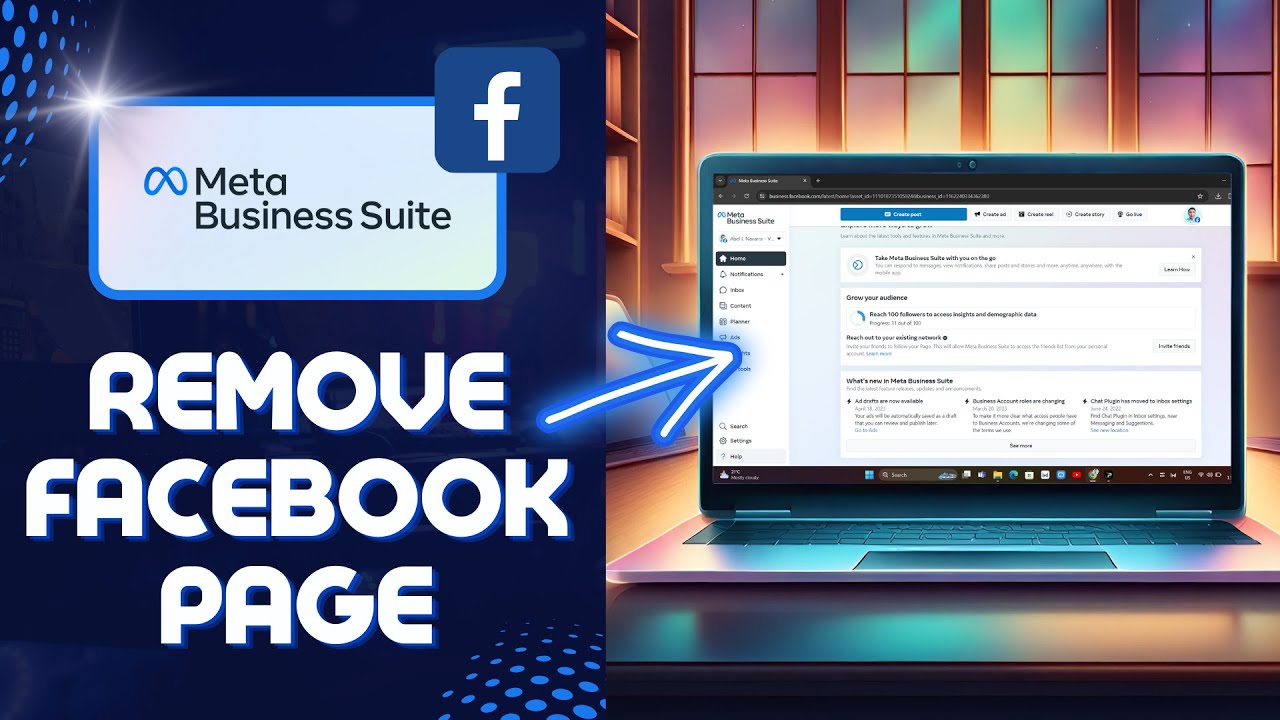
How To REMOVE Facebook Page From META Business (New 2024 Tutorial) => Watch On YouTube
How to Remove a Facebook Page from Meta Business Suite
Managing your online presence often involves streamlining your tools and assets. If you’ve found yourself with a Facebook page linked to your Meta Business Suite that you no longer need there, removing it is a straightforward process. This guide will walk you through the steps to successfully detach a Facebook page from your Meta Business Suite account.
Here’s how to do it:
-
Access Meta Business Suite: Open your internet browser and navigate to business.facebook.com. This will take you directly to the Meta Business Suite homepage.
-
Select Your Page (If Needed): Once on the homepage, you might see a dropdown menu at the top left of the screen. Use this menu to select the specific business page you are working with, if it’s not already displayed.
-
Navigate to All Tools: Look for the side menu, usually on the left. Click on the icon that represents "All Tools" – this is typically indicated by three horizontal lines (often called a "hamburger menu" icon).
-
Go to Settings: From the "All Tools" menu, locate the "Manage" section. Underneath this section, you’ll find "Settings." Click on it to proceed.
-
Locate Business Assets: On the new page, you’ll see various settings options. You’ll want to find and select "Business Assets." This section lists all the pages and assets currently connected to your Meta Business Suite.
-
Select the Page to Remove: Within the "Business Assets" section, you’ll see a list of your connected Facebook pages. Click on the specific Facebook page you wish to remove.
-
Initiate Removal: After selecting the page, look for three dots (an ellipsis icon) at the top right of the page’s detailed view. Click on these three dots.
-
Confirm Removal: A dropdown menu will appear. Select the option that says "Remove from business account."
- Final Confirmation: A pop-up window will ask you to confirm your decision, explaining that once the page is removed, it will no longer be part of this business account. Click to confirm, and your Facebook page will be successfully detached.
That’s it! By following these steps, you can efficiently remove any unwanted Facebook pages from your Meta Business Suite, helping you maintain a tidy and organized digital workspace.