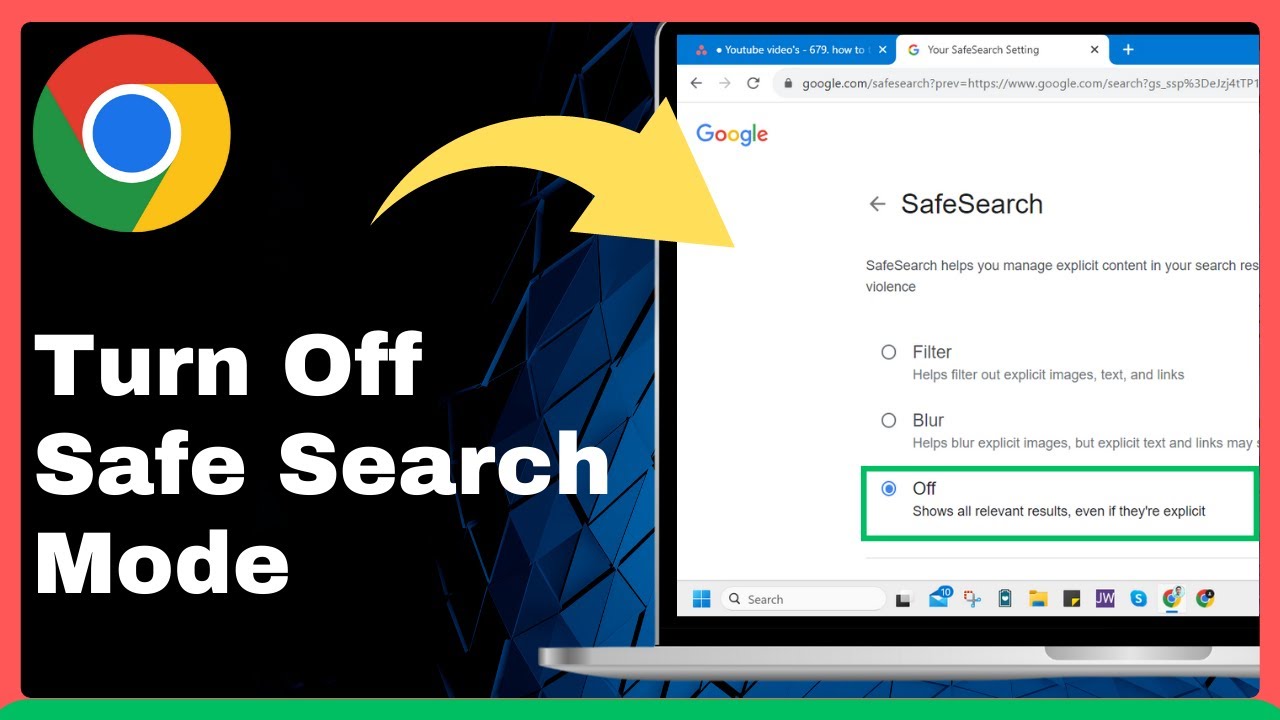
How to Turn Off Safe Search Mode On Google (Full Guide) => Watch On YouTube
How to Disable SafeSearch on Google
Google’s SafeSearch feature is designed to help filter out explicit content from your search results, including things like sexual activity and graphic violence. While it’s a great tool for many, there might be times when you need to temporarily turn it off. Whether you’re conducting specific research or just want unfiltered results, disabling SafeSearch is a quick and easy process.
Here’s a simple, step-by-step guide to turning off SafeSearch mode on Google:
- Open Google Chrome and Go to Google.com: Start by launching your Google Chrome browser and navigating to the Google homepage at google.com.
- Perform a Quick Search: You’ll need to be on a search results page to access the settings. Simply type anything into the search bar and hit Enter.
- Access Your Quick Settings: On the search results page, look for the "Settings" icon. This usually looks like a small gear or cogwheel and can be found in the top or bottom right corner of the page. Click on it.
- Select "SafeSearch": A menu will pop up. Within this menu, under the "Using search" section, you’ll find an option labeled "SafeSearch." It often has a short description like "helps manage explicit content." Go ahead and click this option.
-
Choose "Off": You’ll now be taken to the dedicated SafeSearch settings page. Here, Google outlines what SafeSearch does and provides you with three choices:
- Filter: This option filters out explicit images, text, and links from your results.
- Blur: This will blur some explicit images that appear in your search results.
- Off: Selecting "Off" will allow all relevant results to be displayed, even if they contain explicit content.
To completely disable SafeSearch, simply click on the "Off" option.
That’s all there is to it! Your Google searches will now display all relevant results without SafeSearch filtering explicit content.