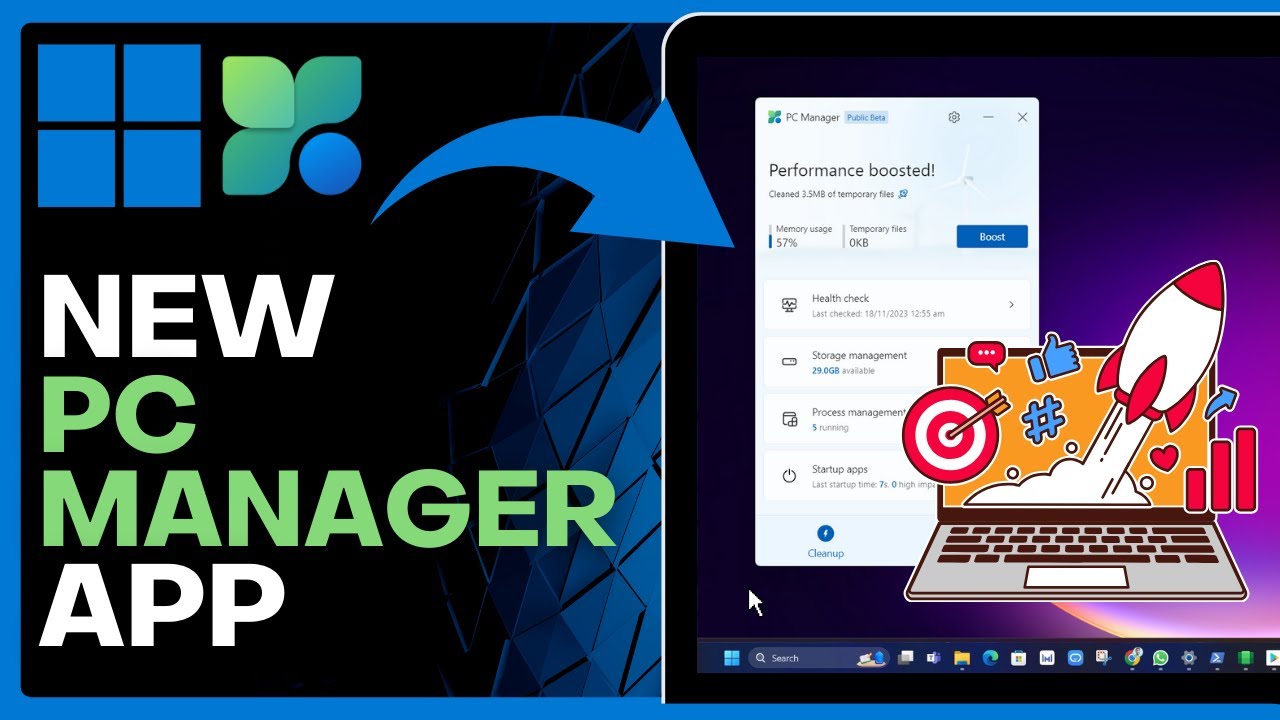
I Tried The New PC Manager App in Windows 11 23H2! => Watch On YouTube
Unlock Peak Performance: A Deep Dive into Windows 11’s New PC Manager App
Hello everyone, and welcome back to our latest tech deep dive! Today, we’re taking a close look at a fantastic new utility designed to keep your Windows 11 PC running smoothly: the Microsoft PC Manager app. Available with the Windows 11 23H2 update, this free tool is your new go-to for boosting performance, managing storage, and keeping those pesky background apps in check.
Let’s walk through how to get it, what it does, and why it’s a game-changer for PC maintenance.
Getting Started: Download and Installation
First things first, you’ll need to download the PC Manager. It’s a straightforward process:
- Open your web browser (like Google Chrome).
- In the search bar, type "Microsoft PC Manager" and hit Enter.
- Look for and open the official link, usually titled "Microsoft PC Manager" or similar, leading to the Microsoft site.
- On the official page, you’ll see details about the app, including its compatibility with Windows 10 (version 1809 and above) and Windows 11.
- Click the prominent "Download" button to start the download.
- Once the download is complete, click on the downloaded file.
- Follow the on-screen prompts: click "Yes" to allow the app, check the box to agree to the terms, and then click "Install."
- The installation process is quick. Once it’s finished, simply click the "Launch Now" button to open the app.
- After launching, click "Start" to begin exploring its features.
Your All-in-One PC Maintenance Hub
The Microsoft PC Manager isn’t just another system utility; it’s a central hub that taps into existing Windows functionalities, presenting them in a user-friendly interface. It’s designed to be a quiet, reliable way to safeguard and optimize your PC. We’ve tested it extensively and found it to be a genuinely handy and easy-to-use tool for general PC maintenance.
Here’s a breakdown of what you’ll find:
Performance Boost & Health Check
At the top of the interface, you’ll see a quick overview of your storage and temporary files.
- Boost: With a single click on the "Boost" button, the app helps improve your PC’s performance by clearing temporary files and freeing up memory. You’ll see a confirmation like "Performance boosted!"
- Health Check: This feature scans your computer for potential issues. Click "Check now" to initiate a scan. It identifies areas needing attention, such as startup apps that can be disabled to speed up your boot process. Simply select the apps you wish to disable and click "Proceed."
Comprehensive Storage Management
Under the "Storage Management" section, you’ll find powerful tools to reclaim disk space:
- Deep Cleanup: This performs a full system scan, identifying unnecessary files that can be safely deleted. After the scan, you can review the items and select what you want to clean up, then click "Proceed."
- Manage Large Files: This tool helps you pinpoint and manage large files on your computer. You can easily view these files, open their location, and delete any that are no longer needed.
- Manage Apps: If you have apps you rarely use, this section allows you to uninstall them quickly, saving valuable space.
- Storage Sense: An automated cleanup feature that runs when disk space is low, clearing temporary files to help your system run its best. You can also configure cleanup schedules here.
Process and Startup Management
To further optimize your PC’s speed and responsiveness:
- Process Management: Ever notice your PC slowing down? This feature lets you identify and end unused background processes that might be hogging system resources, helping your system run faster.
- Startup Apps: Control which applications launch automatically when your PC boots up. Disabling unnecessary startup apps can significantly speed up your boot process.
Security Features
The "Security" tab is where you can proactively protect your system:
- PC Scan: Scan your PC for potential threats and viruses. This offers a quick and convenient way to check your system’s security status.
- Windows Update: Directly check for and manage the latest Windows updates to ensure your system is always protected and running the most current software.
- Default Browser Settings: Easily configure your default applications, including your web browser.
- Taskbar Repair: If you encounter any issues with your taskbar’s appearance, this feature can help restore it to its default state.
- Pop-up Management: Enable a pop-up blocker to prevent annoying pop-up windows from appearing.
Intelligent Automation in Settings
By clicking the gear icon for "Settings" in the top right, you’ll find an important option: automatic PC boosting. You can enable the PC Manager to automatically boost your system when RAM usage is high or when there’s more than 1GB of temporary files. This set-it-and-forget-it feature is highly recommended for continuous optimization.
Why Microsoft PC Manager?
While several third-party tools offer similar services, they don’t always provide the best user experience or the peace of mind that comes with a Microsoft-backed solution. The Microsoft PC Manager offers a clean, intuitive interface and integrates directly with your Windows operating system, making it a reliable and effective alternative for maintaining your PC.
If you’re seeking a simple, powerful, and free tool to keep your Windows 11 system in top shape, we highly recommend updating to Windows 11 23H2 and downloading the Microsoft PC Manager. It’s an exciting new feature that makes PC maintenance easier than ever. Give it a try and experience a snappier, more organized computer!