Skip to content
fasttechfix.com
fasttechfix.com
  • Home

fasttechfix.com

  • Home
Home / Uncategorized / How To REMOVE...
Uncategorized

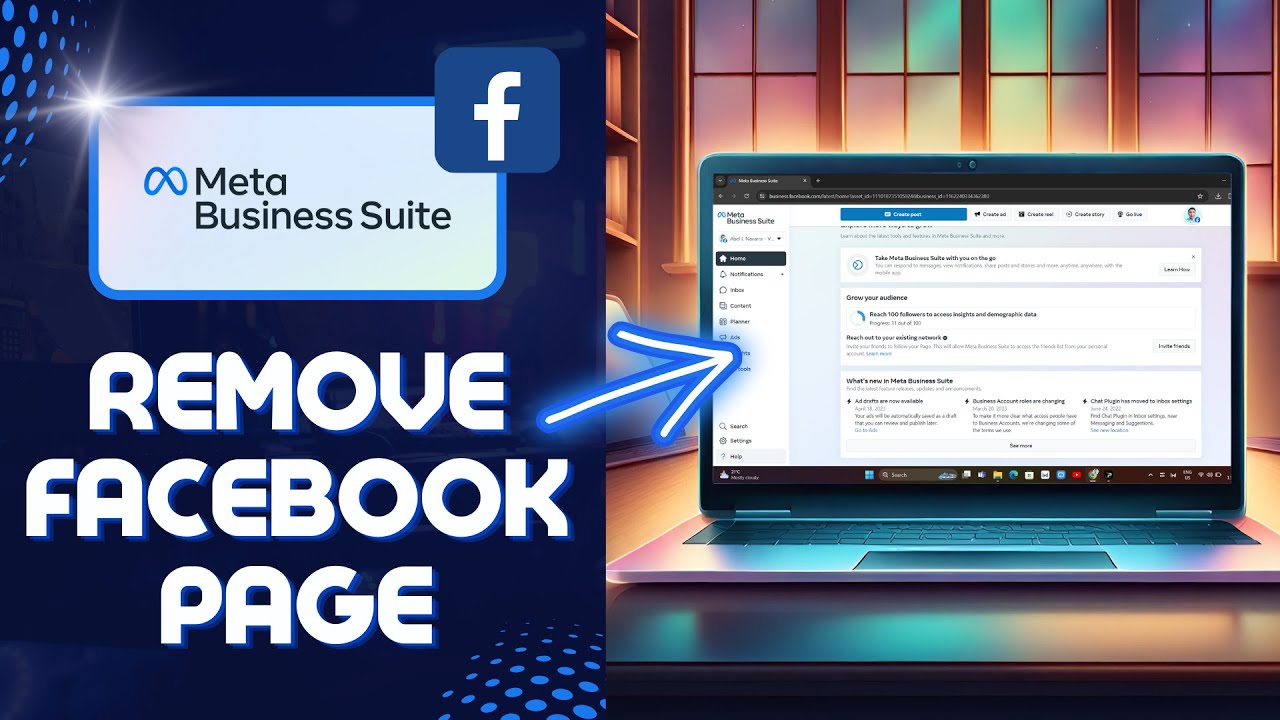
How To REMOVE Facebook Page From META Business (New 2024 Tutorial)

fasttechfixteams@gmail.com April 12, 2026


How To REMOVE Facebook Page From META Business (New 2024 Tutorial) => Watch On YouTube

How to Remove a Facebook Page from Meta Business Suite

Managing your online presence often involves streamlining your tools and assets. If you’ve found yourself with a Facebook page linked to your Meta Business Suite that you no longer need there, removing it is a straightforward process. This guide will walk you through the steps to successfully detach a Facebook page from your Meta Business Suite account.

Here’s how to do it:

  1. Access Meta Business Suite: Open your internet browser and navigate to business.facebook.com. This will take you directly to the Meta Business Suite homepage.

  2. Select Your Page (If Needed): Once on the homepage, you might see a dropdown menu at the top left of the screen. Use this menu to select the specific business page you are working with, if it’s not already displayed.

  3. Navigate to All Tools: Look for the side menu, usually on the left. Click on the icon that represents "All Tools" – this is typically indicated by three horizontal lines (often called a "hamburger menu" icon).

  4. Go to Settings: From the "All Tools" menu, locate the "Manage" section. Underneath this section, you’ll find "Settings." Click on it to proceed.

  5. Locate Business Assets: On the new page, you’ll see various settings options. You’ll want to find and select "Business Assets." This section lists all the pages and assets currently connected to your Meta Business Suite.

  6. Select the Page to Remove: Within the "Business Assets" section, you’ll see a list of your connected Facebook pages. Click on the specific Facebook page you wish to remove.

  7. Initiate Removal: After selecting the page, look for three dots (an ellipsis icon) at the top right of the page’s detailed view. Click on these three dots.

  8. Confirm Removal: A dropdown menu will appear. Select the option that says "Remove from business account."

  9. Final Confirmation: A pop-up window will ask you to confirm your decision, explaining that once the page is removed, it will no longer be part of this business account. Click to confirm, and your Facebook page will be successfully detached.

That’s it! By following these steps, you can efficiently remove any unwanted Facebook pages from your Meta Business Suite, helping you maintain a tidy and organized digital workspace.

Facebook X.com LinkedIn Instagram Pinterest More

Share this content

Social Media

Facebook X.com Reddit Tumblr Snapchat VKontakte Odnoklassniki Weibo QQ Douban Baidu Digg StumbleUpon Flipboard Mix

Professional

LinkedIn Slack Zoom XING Behance Dribbble

Messaging

WhatsApp Telegram Microsoft Teams Messenger Viber Line WeChat SMS Kik Threema Signal

Visual

Pinterest Instagram

Communication

Email

Bookmarking

Pocket Evernote Instapaper

Developer

GitHub GitLab Stack Overflow Dev.to Hacker News

Gaming

Discord Twitch

Video

YouTube TikTok

Publishing

Medium WordPress Blogger

Entertainment

Spotify SoundCloud

Academic

Mendeley ResearchGate Academia

Finance

Coinbase

Shopping

Amazon eBay Etsy

Lifestyle

Foursquare Yelp

Utility

Copy Link Print QR Code
#business suite facebook
#business suite facebook page
#facebook business manager
#facebook business suite
#facebook business suite tutorial
#how to delete a facebook business page
#how to remove facebook page from meta business suite
#how to use facebook business suite
#meta business suite
#remove admin from facebook business manager
#remove admin from facebook business suite account 2023
#remove facebook page from business manager
#remove facebook page from meta business suite

Post navigation

Previous: How to Put 2 Videos Together in CapCut 2024 Beginner Tutorial
Next: I Tried The New PC Manager App in Windows 11 23H2!

Recent Posts

  • How To Fix Discord Server Link Invalid or Expired Issue on Android (Easy Method)
  • How to Delete Purchase History on Shopee (Quick & Easy)
  • How to Share Tiktok Video on Facebook Story (Quick & Easy)
  • ROBLOX Error Code 268 Solution (FIXED)
  • How to Buy Gems in BRAWL STARS with Paysafecard 2024 (Best Method)

Recent Comments

No comments to show.

Archives

  • April 2026
  • March 2026

Categories

  • Uncategorized
© 2026 fasttechfix.com. All Rights Reserved. | Blog Build by Wp Theme Space.
Facebook X.com LinkedIn Instagram Pinterest

Share this content

Social Media

Facebook X.com Reddit Tumblr Snapchat VKontakte Odnoklassniki Weibo QQ Douban Baidu Digg StumbleUpon Flipboard Mix

Professional

LinkedIn Slack Zoom XING Behance Dribbble

Messaging

WhatsApp Telegram Microsoft Teams Messenger Viber Line WeChat SMS Kik Threema Signal

Visual

Pinterest Instagram

Communication

Email

Bookmarking

Pocket Evernote Instapaper

Developer

GitHub GitLab Stack Overflow Dev.to Hacker News

Gaming

Discord Twitch

Video

YouTube TikTok

Publishing

Medium WordPress Blogger

Entertainment

Spotify SoundCloud

Academic

Mendeley ResearchGate Academia

Finance

Coinbase

Shopping

Amazon eBay Etsy

Lifestyle

Foursquare Yelp

Utility

Copy Link Print QR Code