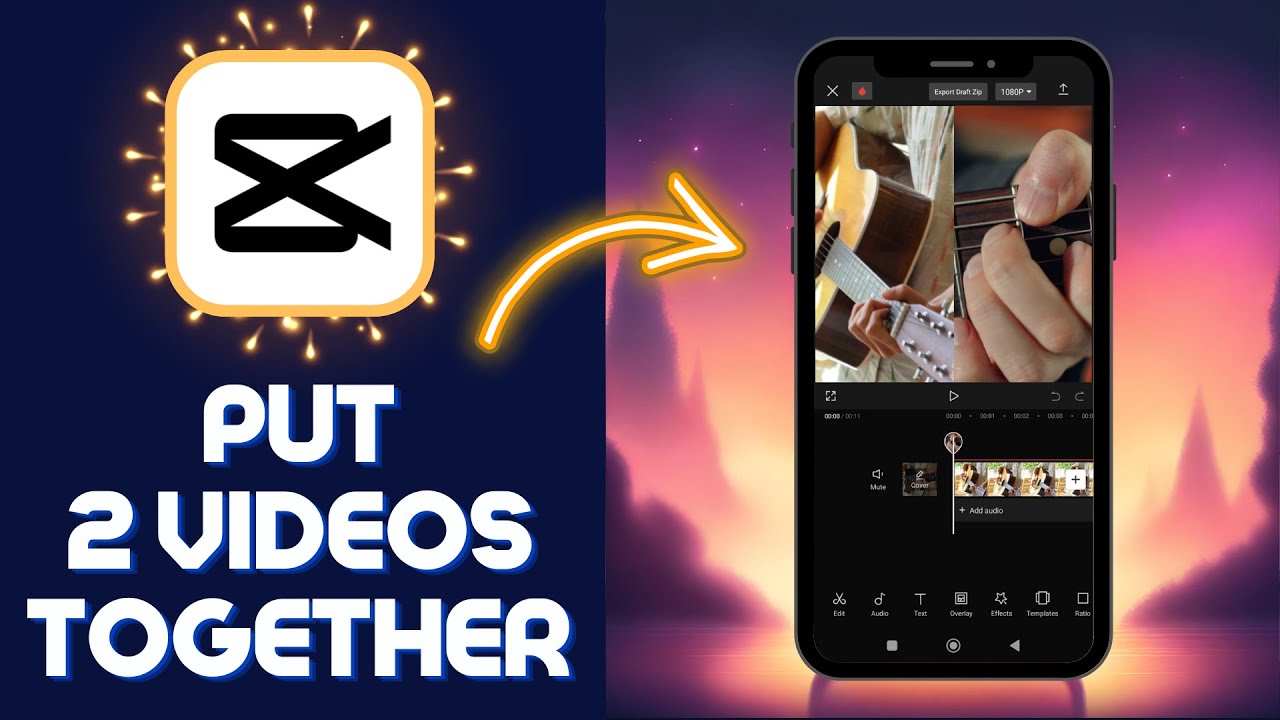
How to Put 2 Videos Together in CapCut 2024 Beginner Tutorial => Watch On YouTube
How to Combine Two Videos in CapCut for Awesome Side-by-Side Content
Ever wanted to showcase two videos simultaneously in one frame, whether for a comparison, a reaction, or just a dynamic visual? CapCut makes combining videos a breeze right on your mobile device. Follow this simple guide to create your next cool side-by-side video!
What You’ll Need:
- Your mobile phone
- The CapCut app
- Two videos you want to combine
Step-by-Step Guide to Merging Videos in CapCut:
1. Start a New Project:
- Open the CapCut app on your mobile device.
- Tap on the "New Project" button, usually located at the top of the screen.
2. Select Your First Video:
- Browse your device’s gallery and select the first video you want to include. This will be your primary video track.
- Once selected, tap "Add" (or the equivalent button) to bring it into your project.
3. Add Your Second Video as an Overlay:
- Now, to introduce your second video, look for the "Overlay" option in the bottom menu bar and tap it.
- Then, select "Add Overlay."
- Choose your second video from your gallery and tap "Add" again. This will place the second video on top of your first video, creating a layered effect.
4. Adjust Your Video Ratio:
- Before positioning your videos, it’s a good idea to set the overall canvas ratio for your project. This is crucial for achieving a clean side-by-side look.
- Scroll through the bottom menu until you find "Ratio" and tap on it.
- Select your desired ratio. For a classic side-by-side, a 1:1 (square) ratio for Instagram often works great, or even 16:9 if you want a wider frame. Choose what fits your content best!
5. Position and Resize Your Videos:
- Now that your ratio is set, it’s time to arrange your videos.
- First Video: Tap on your primary video track. Using two fingers, you can pinch, zoom, and drag it to position it on one side of your frame (e.g., the left). Resize it so it fits neatly within the chosen ratio.
- Second Video: Next, tap on your overlay video track. Again, use two fingers to resize and drag this video to the other side of the frame (e.g., the right), making sure it aligns well with your first video.
- Pro Tip: If a video isn’t fitting perfectly, you can select it and look for the "Crop" option in the menu to trim off any unwanted edges, helping it sit better in your split frame.
6. Play and Refine:
- Hit the play button to watch your combined videos in action.
- Make any final adjustments to positioning, sizing, or timing until you’re happy with the result.
And that’s all there is to it! You’ve successfully combined two videos in CapCut. This technique is fantastic for creating engaging content like before-and-after comparisons, reaction videos, or just showcasing multiple perspectives at once.
If you found this guide helpful, consider sharing it with a friend who might also want to up their CapCut game! Happy editing!