Skip to content
fasttechfix.com
fasttechfix.com
  • Home

fasttechfix.com

  • Home
Home / Uncategorized / How To Verify...
Uncategorized

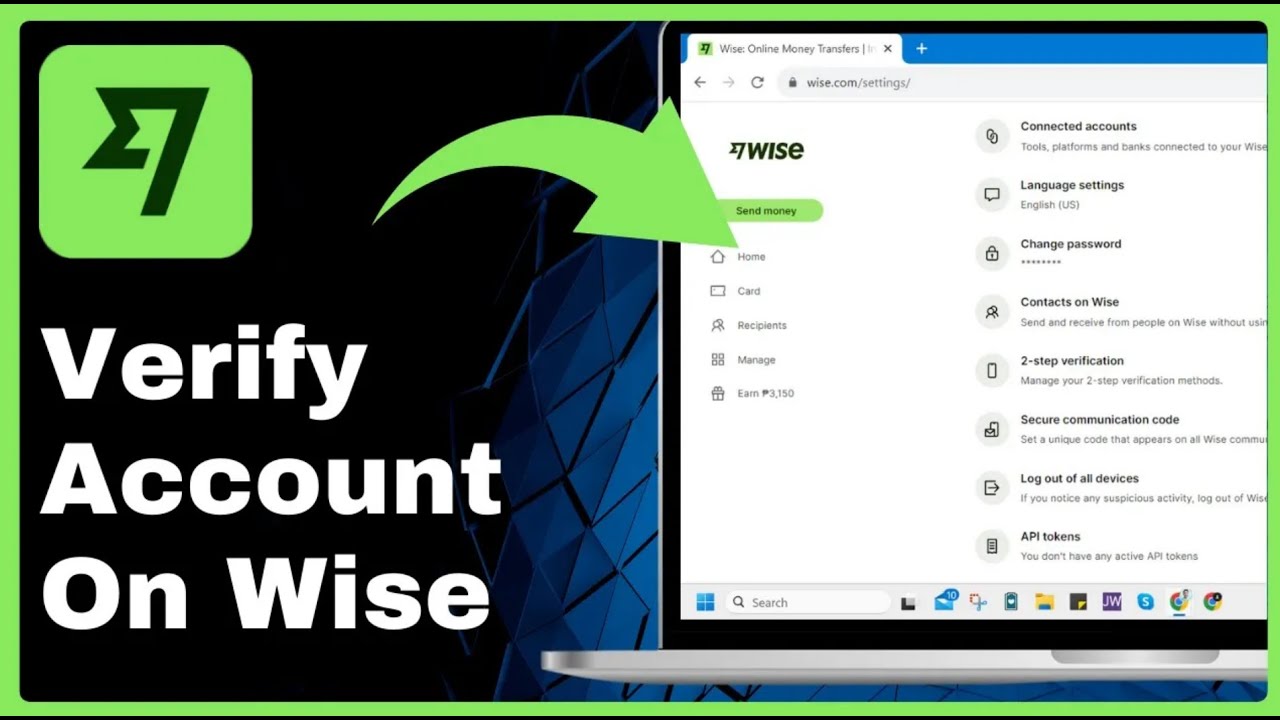
How To Verify Account On Wise 2025

fasttechfixteams@gmail.com April 12, 2026


How To Verify Account On Wise 2025 => Watch On YouTube

How to Fully Verify Your Wise Account

Verifying your Wise account is a crucial step to unlock all its features and ensure smooth, secure transactions. While the process might seem extensive, it’s straightforward and designed to protect your money. Here’s a step-by-step guide to getting your Wise account fully verified.

1. Accurate Initial Account Setup

When you first sign up for Wise, precision is key. Make sure all the personal details you provide are accurate and complete. This includes your:

  • Exact Location: Enter your current residential address or the location where your bank account is based. This is vital for compliance and account verification.

2. Verify Your Phone Number

A simple yet essential step, Wise will prompt you to verify your phone number. Just enter your number as requested, and follow the instructions to confirm it.

3. Verify Your Email Address

Once you’ve successfully logged into your Wise dashboard:

  1. Navigate to Settings: Click on your profile name, usually located in the top-right corner of your screen.
  2. Select "Settings."
  3. Go to "Email Settings": Under your settings, you’ll find an option related to email.
  4. Confirm Your Email: Wise will send a verification link to your registered email address. Click this link to confirm your email and mark it as verified. This is important for receiving communications and securely managing your account.

4. Connect Your Bank Account

To send and receive funds seamlessly, connecting your external bank account is necessary:

  1. Access Connected Accounts: From your Wise dashboard, look for an option like "Connected Accounts" or similar.
  2. Add a Bank Account: Select the option to add or connect a bank account.
  3. Choose Bank Location: Specify the country where your bank account is located (e.g., "United States").
  4. Instant Verification: Wise often offers an "instant verification" option. This usually involves securely logging into your bank account through Wise to link it. Follow the on-screen prompts to complete this process.

5. Set Up Recipients (for Sending Money)

While not strictly part of the initial account verification, setting up recipients makes your Wise account fully functional for sending money.

  1. Add a Recipient: If you plan to send money, you’ll need to add a recipient. This could even be "myself" if you’re sending money to your own account in a different currency or country.
  2. Choose Currency and Enter Bank Details: Select the currency you’ll be receiving and enter the recipient’s bank account name and details.

By following these steps, you’ll ensure your Wise account is fully verified, allowing you to send, receive, and manage your money efficiently and securely.

Facebook X.com LinkedIn Instagram Pinterest More

Share this content

Social Media

Facebook X.com Reddit Tumblr Snapchat VKontakte Odnoklassniki Weibo QQ Douban Baidu Digg StumbleUpon Flipboard Mix

Professional

LinkedIn Slack Zoom XING Behance Dribbble

Messaging

WhatsApp Telegram Microsoft Teams Messenger Viber Line WeChat SMS Kik Threema Signal

Visual

Pinterest Instagram

Communication

Email

Bookmarking

Pocket Evernote Instapaper

Developer

GitHub GitLab Stack Overflow Dev.to Hacker News

Gaming

Discord Twitch

Video

YouTube TikTok

Publishing

Medium WordPress Blogger

Entertainment

Spotify SoundCloud

Academic

Mendeley ResearchGate Academia

Finance

Coinbase

Shopping

Amazon eBay Etsy

Lifestyle

Foursquare Yelp

Utility

Copy Link Print QR Code
#Complete Wise Verification
#How to Use Wise
#How to Verify Account on Wise
#how to verify account on wise tutorial
#how to verify your wise account
#Verification Process Wise
#Verify Wise Account
#Wise 2025
#Wise Account Security
#Wise Account Verification
#Wise App Guide
#Wise App Verification
#Wise International Transfers
#Wise Transfer Account Setup

Post navigation

Previous: ✅ How to Verify Remitly Account
Next: How to Put 2 Videos Together in CapCut 2024 Beginner Tutorial

Recent Posts

  • How To Fix Discord Server Link Invalid or Expired Issue on Android (Easy Method)
  • How to Delete Purchase History on Shopee (Quick & Easy)
  • How to Share Tiktok Video on Facebook Story (Quick & Easy)
  • ROBLOX Error Code 268 Solution (FIXED)
  • How to Buy Gems in BRAWL STARS with Paysafecard 2024 (Best Method)

Recent Comments

No comments to show.

Archives

  • April 2026
  • March 2026

Categories

  • Uncategorized
© 2026 fasttechfix.com. All Rights Reserved. | Blog Build by Wp Theme Space.
Facebook X.com LinkedIn Instagram Pinterest

Share this content

Social Media

Facebook X.com Reddit Tumblr Snapchat VKontakte Odnoklassniki Weibo QQ Douban Baidu Digg StumbleUpon Flipboard Mix

Professional

LinkedIn Slack Zoom XING Behance Dribbble

Messaging

WhatsApp Telegram Microsoft Teams Messenger Viber Line WeChat SMS Kik Threema Signal

Visual

Pinterest Instagram

Communication

Email

Bookmarking

Pocket Evernote Instapaper

Developer

GitHub GitLab Stack Overflow Dev.to Hacker News

Gaming

Discord Twitch

Video

YouTube TikTok

Publishing

Medium WordPress Blogger

Entertainment

Spotify SoundCloud

Academic

Mendeley ResearchGate Academia

Finance

Coinbase

Shopping

Amazon eBay Etsy

Lifestyle

Foursquare Yelp

Utility

Copy Link Print QR Code