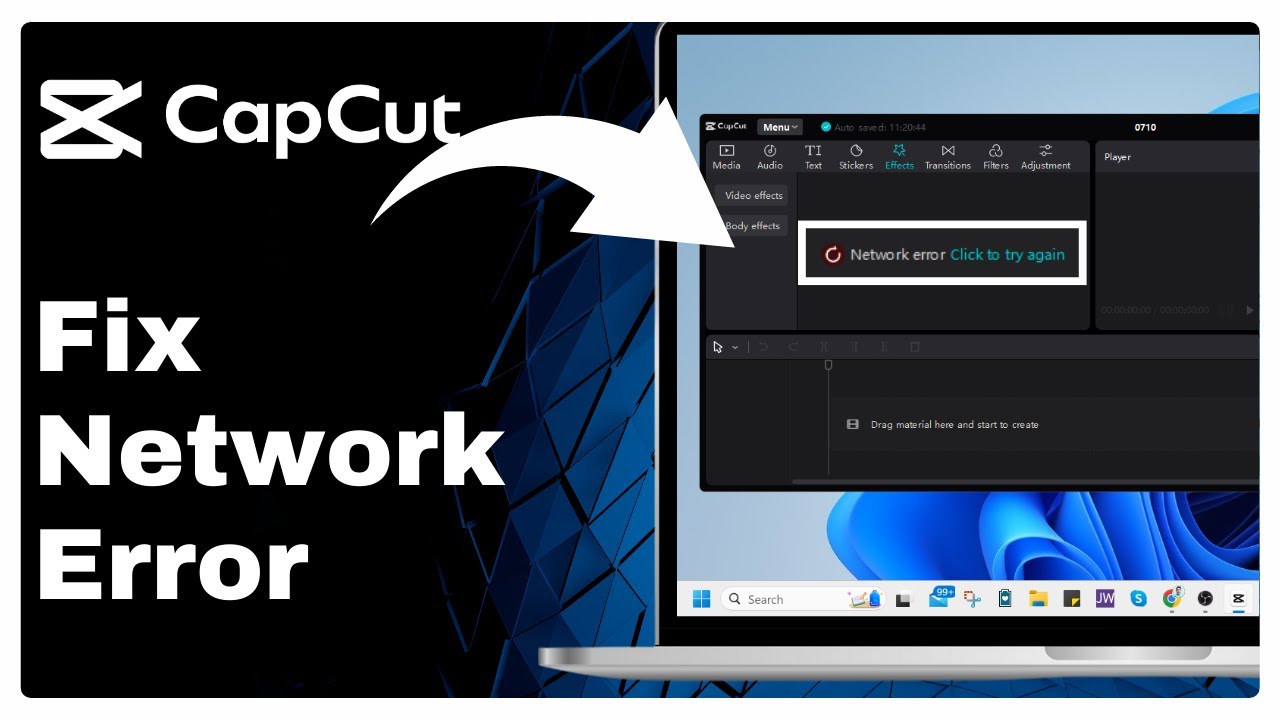
CapCut – How to Fix Network Error on PC (Works Everytime) => Watch On YouTube
Stuck on CapCut? How to Fix That Pesky Network Error on PC
Hey everyone! If you’re a CapCut user on PC and keep running into that frustrating "network error," you’re not alone. This often happens if CapCut isn’t officially available in your region, or if your network settings are causing a hiccup. Good news! We’ve got a few solid fixes you can try to get back to editing.
Here’s a step-by-step guide to troubleshooting and resolving CapCut’s network issues on your computer:
Method 1: Use a Virtual Private Network (VPN)
Often, CapCut’s network error is a geo-restriction issue. If the app isn’t officially supported in your location, using a VPN can trick it into thinking you’re somewhere else.
- Search for a VPN: Head over to google.com and search for "free VPN" or "VPN for PC." You’ll find a variety of options.
- Download and Install: Choose a reputable VPN service and install it on your PC.
- Connect to a Server: Open the VPN app, select a server in a region where CapCut is available (like the United States or a country where you know it works), and connect.
- Reopen CapCut: Once connected to the VPN, reopen your CapCut app. See if the network error is resolved.
Method 2: Reinstall an Older Version of CapCut
Sometimes, newer app versions can have bugs or compatibility issues. If the VPN didn’t work, rolling back to an older version might do the trick.
- Uninstall CapCut:
- Go to your Windows search bar and type "Control Panel."
- Open the Control Panel app.
- Click on "Programs" or "Programs and Features."
- Find CapCut in the list, click on it, and select "Uninstall." Follow the prompts to completely remove the application.
- Download an Older Version: Search online (e.g., on Google or reliable software archives) for "CapCut old version PC download." Make sure you download from a trusted source.
- Reinstall: Once the older version is downloaded, run the installer and reinstall CapCut.
- Check for Fix: Launch CapCut and check if the network error persists.
Method 3: Change Your DNS Settings
Incorrect or slow DNS (Domain Name System) settings can sometimes prevent applications from connecting to their servers. Changing your DNS to a public, reliable one can often help.
- Open Control Panel: Go to your Windows search bar and type "Control Panel," then open it.
- Navigate to Network Settings:
- Click on "Network and Internet."
- Then, click on "Network and Sharing Center."
- Access Adapter Properties:
- On the left-hand side, click "Change adapter settings."
- Find your active connection (either "Wi-Fi" or "Ethernet," depending on how you’re connected). Right-click on it and select "Properties."
- Modify IPv4 DNS:
- In the properties window, scroll down and double-click on "Internet Protocol Version 4 (TCP/IPv4)."
- Select the option "Use the following DNS server addresses."
- Enter the following DNS servers:
- Preferred DNS server:
1.1.1.1 - Alternate DNS server:
1.0.0.1
- Preferred DNS server:
- Click "OK" on both open windows to save the changes.
Method 4: Run Network Reset Commands
After changing DNS settings or if the issue is still persistent, refreshing your network configuration through the Command Prompt can clear out any lingering problems.
- Open Command Prompt as Administrator:
- Go to your Windows search bar, type "cmd," or "Command Prompt."
- Right-click on "Command Prompt" and select "Run as administrator." (This is crucial for the commands to work.)
- Enter the Commands: Carefully type (or copy-paste) each of the following commands, pressing Enter after each one:
ipconfig /flushdns(Clears your computer’s DNS cache)ipconfig /release(Releases your current IP address)ipconfig /renew(Requests a new IP address)netsh winsock reset(Resets the Winsock Catalog, which helps with network connectivity)netsh int ip reset(Resets TCP/IP settings)nbtstat -R(Refreshes NetBIOS names)netsh advfirewall reset(Resets the Windows Firewall to default settings – use with caution if you have custom firewall rules)
- Restart Your Computer: Once all commands have been successfully executed, go to your Start Menu and click on "Restart" to reboot your computer.
After trying these methods and restarting your PC, launch CapCut again. Hopefully, you’ll find that pesky network error is gone, and you can get back to creating!
If you found this guide helpful, feel free to share it with other CapCut users experiencing similar issues!