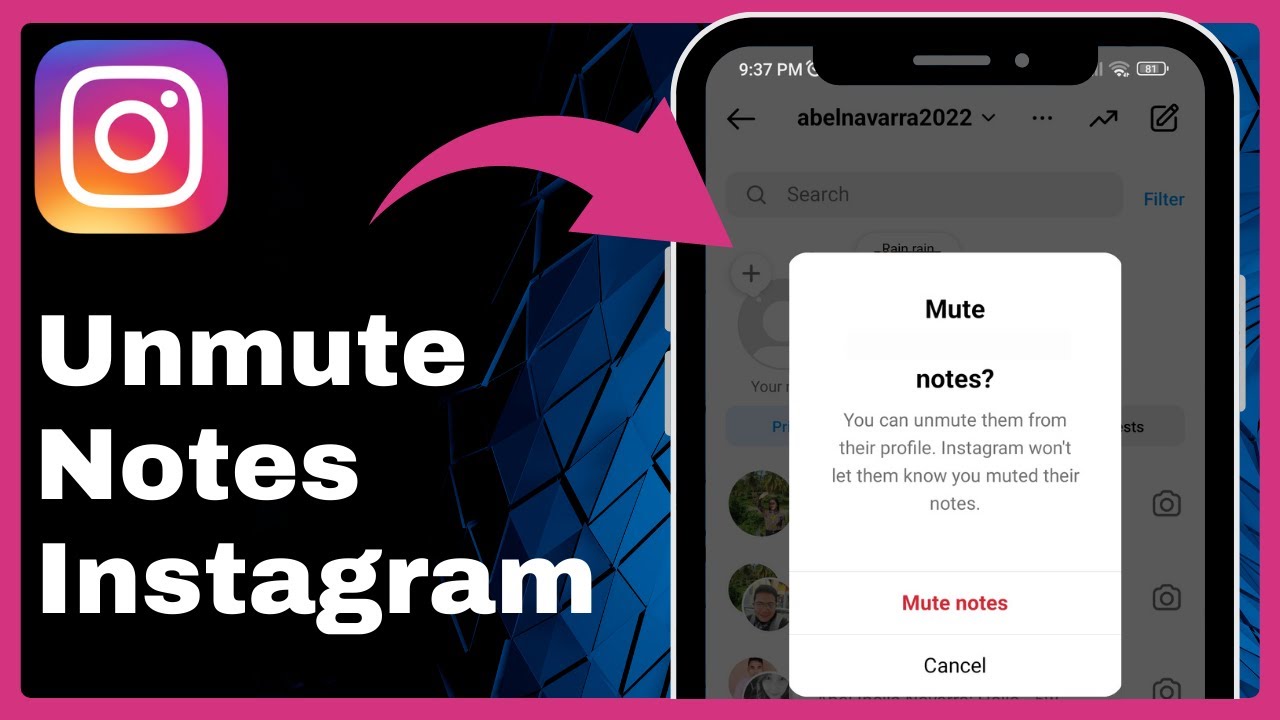
How To Unmute Notes On Instagram (Easy) => Watch On YouTube
How to Unmute Notes on Instagram: Your Complete Guide
Instagram Notes are a fun way to share quick thoughts and updates with your close friends. But what happens if you’ve muted someone’s notes and now want to see them again? Don’t worry, unmuting notes on Instagram is straightforward once you know where to look. This guide from Fast Fix will walk you through the process, covering both how to initially mute a note and, more importantly, how to unmute accounts to see their notes again.
Part 1: How to Mute an Instagram Note (If You Haven’t Already)
If you’ve never muted a note before, here’s a quick rundown of how it works. This is useful context for understanding the unmuting process later.
- Open Instagram: Launch the Instagram app on your mobile device.
- Access Direct Messages: Tap the direct message icon (usually a paper airplane) located in the top-right corner of your screen.
- Locate the Note: At the top of your DM screen, you’ll see a row displaying various notes from your followers.
- Mute the Note: Find the note from the account you wish to mute. Tap and hold on that specific note.
- Confirm Mute: A pop-up menu will appear with the option "Mute Note." Tap this to confirm your decision. The note will then disappear from your view.
Part 2: How to Find and Unmute Notes from Muted Accounts
Now, let’s get to the main event: unmuting those accounts so you can see their notes once more.
- Go to Your Profile: Tap on your profile picture icon in the bottom-right corner of the Instagram app to navigate to your profile page.
- Open the Menu: Tap the three horizontal lines (often called the "hamburger menu") located in the top-right corner of your profile screen.
- Access Settings: From the slide-out menu, select "Settings."
- Find Privacy Settings: Scroll down through the settings options until you find "Privacy." Tap on it.
- Navigate to Muted Accounts: Within the Privacy settings, scroll down again until you see the "Muted Accounts" option. Tap this to view a list of all accounts you’ve muted.
- Select the Account: You’ll see the profile of the user whose notes you previously muted. Tap on their profile picture or name to go directly to their Instagram profile page.
- Access Mute Options: On their profile page, just below their profile picture, you’ll see a "Following" button. Tap on this button.
- Toggle Notes Mute Off: A menu will pop up with various options, including "Mute." Tap on "Mute." Here, you’ll see options to mute Posts, Stories, or Notes. To unmute their notes, simply toggle off the "Notes" option.
- Confirm: Once you’ve toggled off "Notes," you have successfully unmuted that account’s notes. You should now start seeing their notes appear in your direct message section again.
That’s all there is to it! Unmuting Instagram notes is a simple process once you know where to find the "Muted Accounts" section and how to adjust the individual mute settings for each profile.
If you found this guide helpful, don’t forget to share it with friends, and stay tuned to Fast Fix for more useful tech tips!