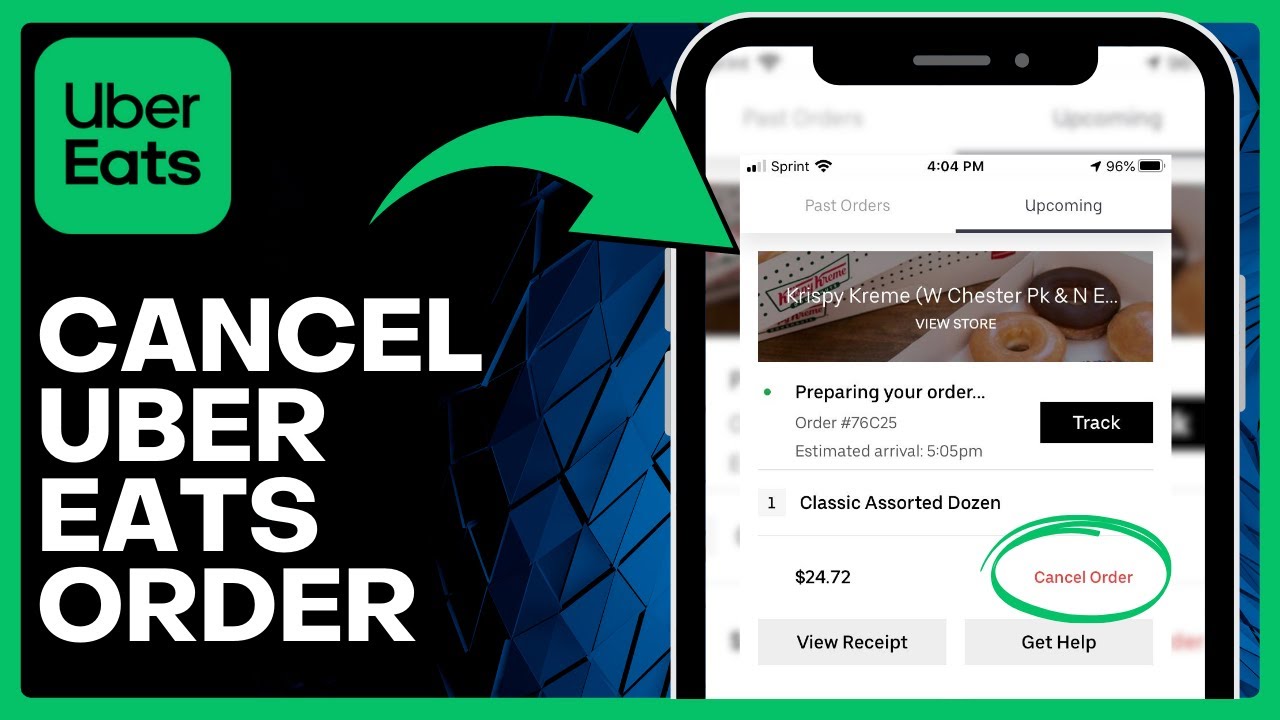
How To Cancel Uber Eats Order (Quick & Easy) => Watch On YouTube
Quick Guide: How to Cancel an Uber Eats Order
Sometimes plans change, or you accidentally hit "order" a little too soon. Whatever the reason, canceling an Uber Eats order is a common need. Good news – it’s a straightforward process! Here’s a quick guide to walk you through it.
Step-by-Step Instructions:
-
Navigate to Your Orders: Open the Uber Eats app. At the bottom right of your screen, you’ll see an icon or text that says "Orders." Tap on that to view your active and past orders.
-
Select the Order to Cancel: On the next screen, you’ll see a list of your orders. Find and tap on the specific order you wish to cancel.
-
Initiate the Cancellation: Once you’ve selected the order, look for the "Cancel Order" option. This will typically be highlighted in red, making it easy to spot. Tap it to proceed.
-
Review Potential Charges: After tapping "Cancel Order," you’ll likely be taken to a new page that outlines any potential cancellation charges. Uber Eats may charge a fee if the restaurant has already started preparing your food or if a delivery driver is already en route. Review the "total charge" displayed on this page.
- Confirm Cancellation: If you’re sure you want to proceed, despite any potential charges, simply tap the "Cancel Order" button one more time to finalize.
That’s it! Your Uber Eats order should now be canceled. While convenient, always double-check your order before confirming to avoid any unnecessary charges.