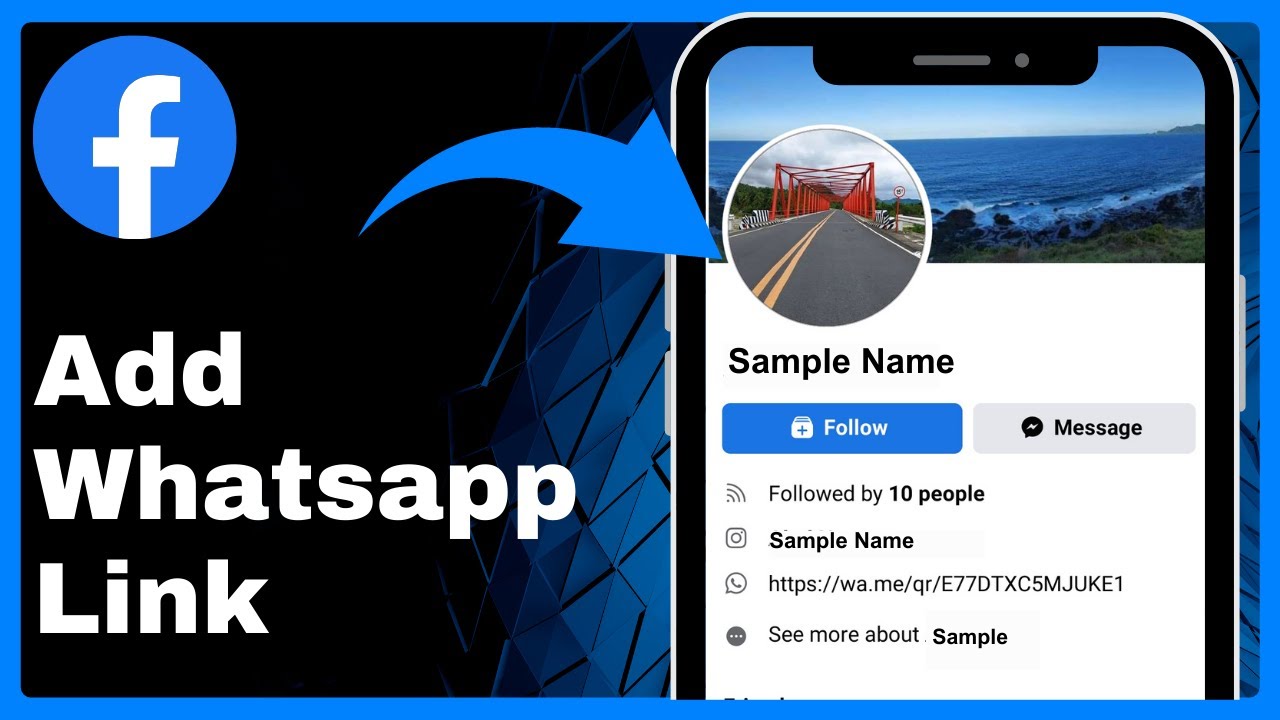
How to Add WhatsApp Link in Facebook Profile (Easy) => Watch On YouTube
How to Add Your WhatsApp Link to Your Facebook Profile
Want to make it easier for people to connect with you on WhatsApp directly from your Facebook profile? Adding your WhatsApp link is a straightforward process that can enhance your connectivity. This guide will walk you through the steps to add your WhatsApp link, allowing friends, family, or potential customers to reach you with just a tap.
Here’s how to do it:
- Open the Facebook App: Launch the Facebook application on your mobile device.
- Access the Menu: Tap the three-line menu icon (often called the "hamburger menu") located in the top-right corner of your screen.
- Go to Your Profile: On the next screen, tap your profile picture and name at the very top to navigate to your main profile page.
- Tap "Edit Profile": On your profile page, locate and tap the "Edit Profile" button.
- Scroll to "Edit Your About Info": Scroll down this section until you find and tap "Edit Your About Info."
- Edit Contact Info: Find the "Contact Info" section and tap the "Edit" button located next to it.
- Add a Social Link: You’ll now be on a detailed "Edit Profile" page. Scroll down to the "Social Links" section and tap "Add Social Link."
- Select WhatsApp and Enter Details:
- A dropdown menu will appear. Select "WhatsApp" from the list of social platforms.
- In the field provided, enter your WhatsApp link (e.g.,
wa.me/yourphonenumber) or simply your phone number associated with WhatsApp.
- Save Your Changes: Don’t forget to tap "Save" (usually found at the bottom or top right) to apply your new link to your profile.
Verify Your Link:
After saving, you can navigate back to your main profile page. Tap "See Your About Info," and you should now see your WhatsApp link proudly displayed, ready for others to use for direct messaging!