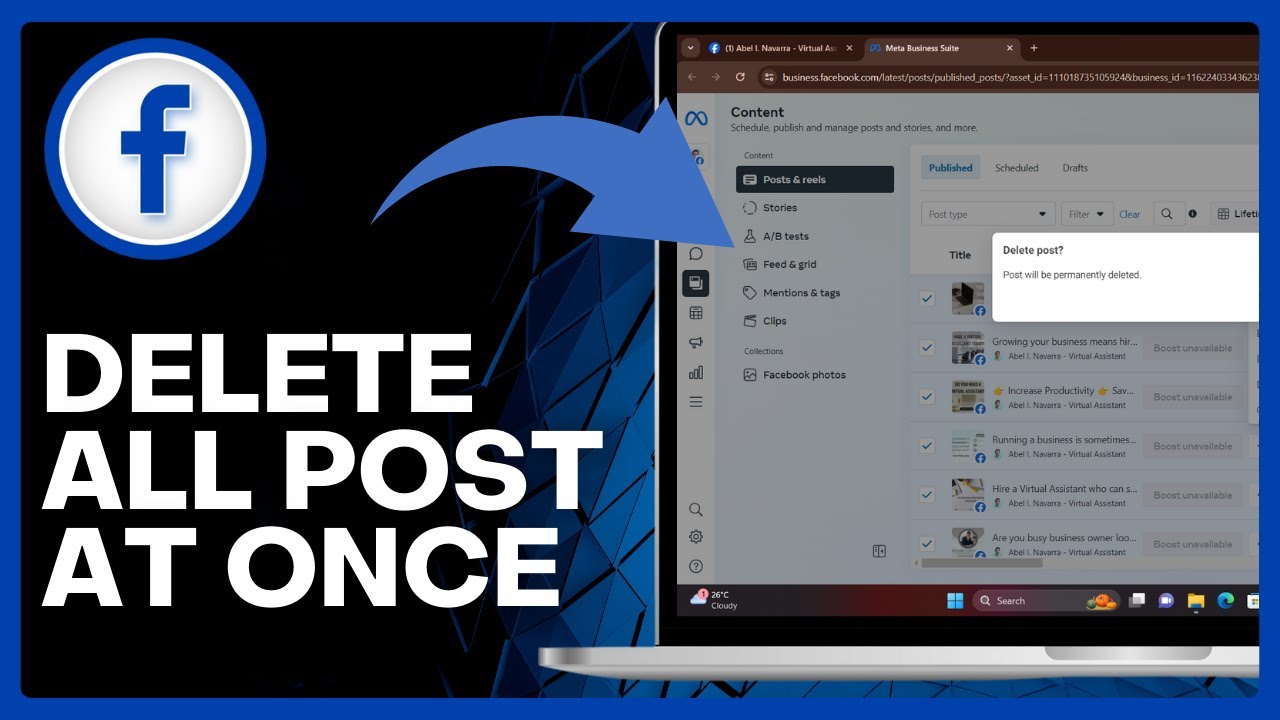
⚠️ How To DELETE ALL Post From Facebook Page (At Once) => Watch On YouTube
Clear Your Facebook Page Clutter: How to Delete Multiple Posts at Once
Hey there! Is your Facebook Page overflowing with old posts you no longer want? Sifting through them one by one to delete them can feel like a never-ending chore. Good news! We’re here to show you a super-efficient way to delete multiple posts from your Facebook Page all at once. Let’s dive in!
First Things First: Mobile or Computer?
The process is a bit different depending on your device, but the goal is the same: accessing the "desktop view" of Facebook.
If you’re on a Mobile Phone:
- Open your Google Chrome browser (or your preferred mobile browser that supports desktop view).
- Go to the browser’s settings and look for an option like "Request Desktop Site" or "Desktop View." Make sure this is checked or enabled. This is crucial for accessing the features we’ll need, just like you would on a computer.
- Now, navigate to Facebook.com and log into your account.
If you’re on a Computer:
- Simply open your favorite web browser (Chrome, Firefox, Edge, Safari, etc.).
- Type "Facebook.com" into the search bar and log into your Facebook account.
Step-by-Step Guide to Bulk Deletion
Once you’re logged into Facebook and in the desktop view (on either mobile or computer), follow these steps:
- Find Your Pages: Look to the left side of your screen. You’ll need to locate "Pages." If you don’t see it immediately, click on the "See more" option to expand the menu, then click "Pages."
- Switch to Your Page: You’ll see a list of all your Facebook Pages. Select the specific page you want to clean up. Once selected, look for a "Switch Now" button and click it. This will switch your Facebook profile over to managing that particular page.
- Access the Professional Dashboard: Still on the left side of your screen, find and click on "Professional Dashboard." This is your hub for managing your page.
- Navigate to Posts & Stories: Within the Professional Dashboard, scroll down until you see a section labeled "Platform tools." Click on "See more" to reveal all the options, then scroll down again and click on "Posts & stories."
- Select Your Posts for Deletion:
- This section will display all the posts from your Facebook Page. You’ll notice small checkboxes next to each post.
- Here’s the trick for bulk selection: On your keyboard, press and hold the "Ctrl" key (for Windows users) or the "Command" key (for Mac users).
- While holding that key down, start clicking on the checkboxes of all the posts you wish to delete. You’ll see them all get selected simultaneously.
- Delete Away! Once you’ve selected all the posts you want to remove, look for a three-dots icon (…) or a "Delete" option that appears (usually at the top of the post list). Click on it, then select "Delete posts." You’ll likely be asked to confirm your decision.
Confirm your choice, and voilà! All your selected posts will be permanently deleted from your Facebook Page.
Wrap Up
And there you have it! A quick and efficient way to declutter your Facebook Page and get rid of those old posts in bulk. No more sifting through hundreds of posts one by one. Happy managing!